Setting up auth
Overview
Section titled “Overview”DeepIntShield provides built-in authentication to protect your dashboard and admin API endpoints. When enabled, users must log in with credentials before accessing the dashboard or making admin API calls. This feature helps secure your DeepIntShield instance, especially when deployed in production environments.
Enabling Authentication
Section titled “Enabling Authentication”Step 1: Navigate to Security Settings
Section titled “Step 1: Navigate to Security Settings”- Open your DeepIntShield dashboard
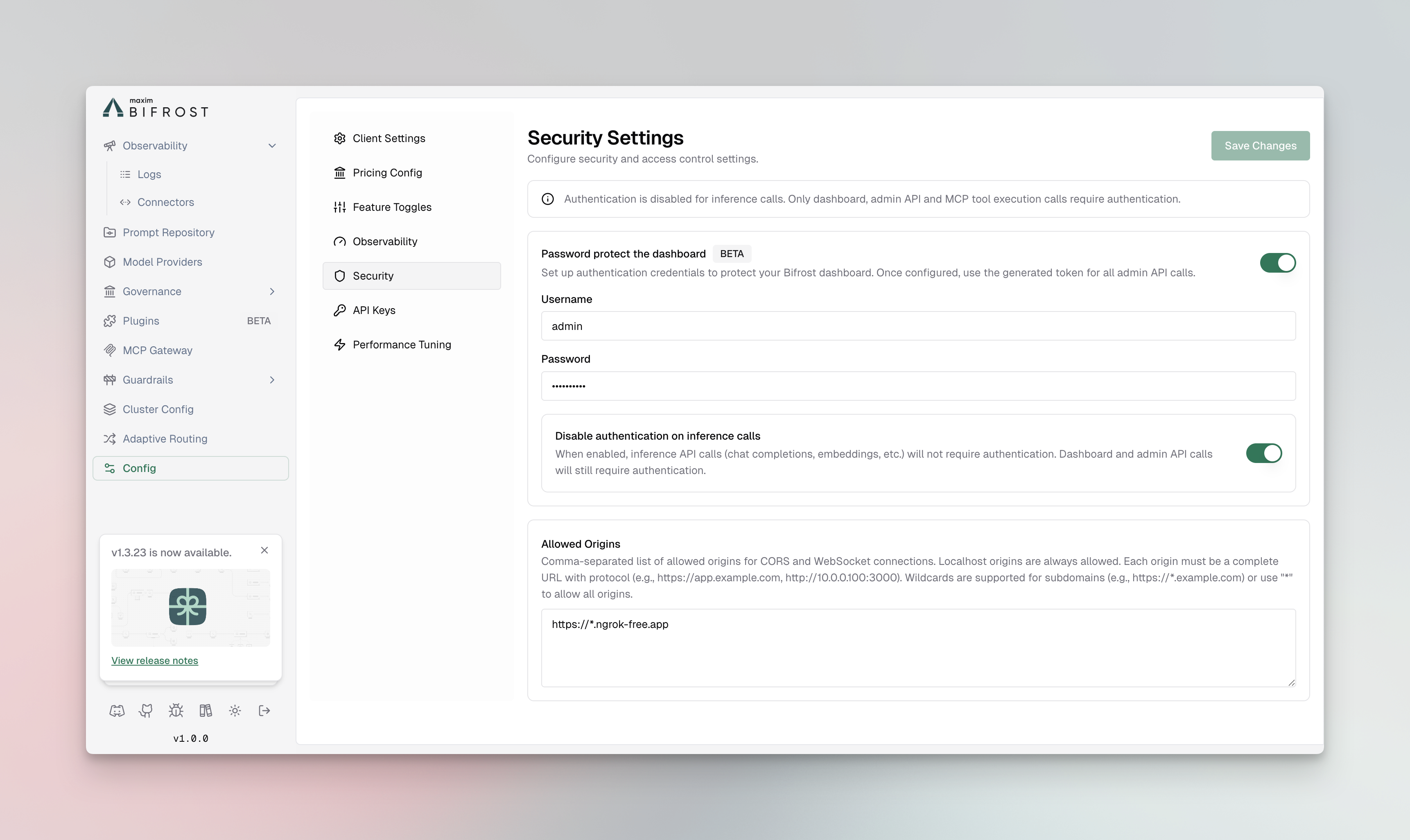
- Go to Workspace → Config → Security tab
- Scroll to the Password protect the dashboard section
Step 2: Enable Authentication
Section titled “Step 2: Enable Authentication”- Toggle the Password protect the dashboard switch to enable authentication
- Enter your Username in the admin username field
- Enter your Password in the admin password field
Step 3: Configure Inference Call Authentication (Optional)
Section titled “Step 3: Configure Inference Call Authentication (Optional)”By default, when authentication is enabled, all API calls (including inference calls) require authentication. You can optionally disable authentication for inference calls while keeping it enabled for the dashboard and admin API:
- Enable the Disable authentication on inference calls toggle
- When enabled:
- Dashboard and admin API calls will still require authentication
- Inference API calls (chat completions, embeddings, etc.) will not require authentication
- MCP tool execution calls will still require authentication
Step 4: Save Changes
Section titled “Step 4: Save Changes”- Click Save Changes to apply your authentication settings
- Changes take effect immediately - no restart required
Logging In
Section titled “Logging In”Once authentication is enabled:
- Navigate to your DeepIntShield dashboard URL
- You will be automatically redirected to the login page
- Enter your configured username and password
- Click Sign in
After successful login, you’ll be redirected to the dashboard. Your session will remain active for 30 days, and you’ll need to log in again after the session expires.
Authentication Methods
Section titled “Authentication Methods”DeepIntShield supports different authentication methods depending on the type of request:
Dashboard Access
Section titled “Dashboard Access”- Bearer Token Authentication: The dashboard uses Bearer token authentication
- Tokens are automatically managed through the login session
- Tokens are stored in browser localStorage and sent with each API request
API Calls
Section titled “API Calls”When authentication is enabled, API calls can be made using
- Basic Authentication: Username and password encoded as base64 via HTTP Basic auth
- Bearer Token: Session token issued after login (Bearer token from session)
When authentication is enabled for inference calls (i.e., the “Disable authentication on inference calls” toggle is OFF), inference calls can be made using:
- Basic Authentication: Username and Password in Basic auth
- Bearer Token: base64 string of username:password as bearer token
Example: Using Basic Auth for Inference Calls
Section titled “Example: Using Basic Auth for Inference Calls”# Using curl with Basic Authcurl -X POST http://localhost:8080/v1/chat/completions \ -u "your-username:your-password" \ -H "Content-Type: application/json" \ -d '{ "model": "openai/gpt-4o", "messages": [{"role": "user", "content": "Hello!"}] }'Important Notes
Section titled “Important Notes”- No Restart Required: Authentication changes take effect immediately without requiring a server restart
- Session Duration: Login sessions last for 30 days
- Password Security: Passwords are hashed and stored securely in the database
- Inference Calls: If you disable authentication on inference calls, only dashboard and admin API endpoints will be protected
Disabling Authentication
Section titled “Disabling Authentication”To disable authentication:
- Navigate to Workspace → Config → Security
- Toggle off the Password protect the dashboard switch
- Click Save Changes
After disabling, the dashboard will be accessible without authentication immediately.