
Virtual Key MCP Tools
Detailed VK tool configuration
DeepIntShield provides three levels of tool filtering to control which MCP tools are available:
tools_to_execute)These levels stack: a tool must pass all applicable filters to be available.
graph LR    All["<b>Available<br/>Tools</b>"]    Client["<b>Client Config</b><br/>tools_to_execute"]    Request["<b>Request<br/>Headers</b>"]    VK["<b>Virtual Key<br/>Filter</b>"]    Final["<b>Tools<br/>for LLM</b>"]
    All --> Client    Client --> Request    Request --> VK    VK --> Final
style All fill:#EEEEEE,stroke:#424242,stroke-width:2.5px,color:#1A1A1A style Client fill:#E3F2FD,stroke:#0D47A1,stroke-width:2.5px,color:#1A1A1A style Request fill:#F3E5F5,stroke:#4A148C,stroke-width:2.5px,color:#1A1A1A style VK fill:#E8F5E9,stroke:#1B5E20,stroke-width:2.5px,color:#1A1A1A style Final fill:#FFFDE7,stroke:#F57F17,stroke-width:2.5px,color:#1A1A1AThe tools_to_execute field on each MCP client config defines the baseline of available tools.
| Value | Behavior |
|---|---|
["*"] | All tools from this client are available |
[] or omitted | No tools available (deny-by-default) |
["tool1", "tool2"] | Only specified tools are available |
curl -X POST http://localhost:8080/api/mcp/client \ -H "Content-Type: application/json" \ -d '{ "name": "filesystem", "connection_type": "stdio", "stdio_config": { "command": "npx", "args": ["-y", "@anthropic/mcp-filesystem"] }, "tools_to_execute": ["read_file", "list_directory"] }'mcpConfig := &schemas.MCPConfig{ ClientConfigs: []schemas.MCPClientConfig{ { Name: "filesystem", ConnectionType: schemas.MCPConnectionTypeSTDIO, StdioConfig: &schemas.MCPStdioConfig{ Command: "npx", Args: []string{"-y", "@anthropic/mcp-filesystem"}, }, ToolsToExecute: []string{"read_file", "list_directory"}, // Only these tools }, },}{ "mcp": { "client_configs": [ { "name": "filesystem", "connection_type": "stdio", "stdio_config": { "command": "npx", "args": ["-y", "@anthropic/mcp-filesystem"] }, "tools_to_execute": ["read_file", "list_directory"] } ] }}Filter tools dynamically on a per-request basis using headers (Gateway) or context values (SDK).
| Filter | Purpose |
|---|---|
mcp-include-clients | Only include tools from specified clients |
mcp-include-tools | Only include specified tools (format: clientName-toolName) |
# Include only specific clientscurl -X POST http://localhost:8080/v1/chat/completions \  -H "x-bf-mcp-include-clients: filesystem,web_search" \  -d '...'
# Include only specific toolscurl -X POST http://localhost:8080/v1/chat/completions \  -H "x-bf-mcp-include-tools: filesystem-read_file,web_search-search" \  -d '...'
# Include all tools from one client, specific tools from anothercurl -X POST http://localhost:8080/v1/chat/completions \  -H "x-bf-mcp-include-tools: filesystem-*,web_search-search" \  -d '...'
# Include internal tools registered via RegisterTool()curl -X POST http://localhost:8080/v1/chat/completions \  -H "x-bf-mcp-include-tools: bifrostInternal-echo,bifrostInternal-calculator" \  -d '...'
# Empty clients filter blocks ALL tools - no tools available to LLMcurl -X POST http://localhost:8080/v1/chat/completions \  -H "x-bf-mcp-include-clients:" \  -d '...'# Result: No MCP tools available (deny-all)
# Empty tools filter also blocks ALL toolscurl -X POST http://localhost:8080/v1/chat/completions \ -H "x-bf-mcp-include-tools:" \ -d '...'# Result: No MCP tools available (deny-all)// Include only specific clientsctx := context.WithValue(context.Background(), schemas.DeepIntShieldContextKey("mcp-include-clients"), []string{"filesystem", "web_search"})
// Include only specific toolsctx = context.WithValue(ctx, schemas.DeepIntShieldContextKey("mcp-include-tools"), []string{"filesystem-read_file", "web_search-search"})
// Wildcard for all tools from a clientctx = context.WithValue(ctx, schemas.DeepIntShieldContextKey("mcp-include-tools"), []string{"filesystem-*", "web_search-search"})
// Include all internal tools (registered via RegisterTool)ctx = context.WithValue(ctx, schemas.DeepIntShieldContextKey("mcp-include-tools"), []string{"bifrostInternal-*"})
response, err := client.ChatCompletionRequest(schemas.NewDeepIntShieldContext(ctx, schemas.NoDeadline), request)
// Empty include-clients blocks ALL tools - no tools availablectx = context.WithValue(context.Background(), schemas.DeepIntShieldContextKey("mcp-include-clients"), []string{}) // Empty slice = deny-all// Result: No MCP tools available to LLM
// Empty include-tools also blocks ALL toolsctx = context.WithValue(context.Background(), schemas.DeepIntShieldContextKey("mcp-include-tools"), []string{}) // Empty slice = deny-all// Result: No MCP tools available to LLM| Pattern | Meaning |
|---|---|
* (in include-clients) | Include all clients |
clientName-* (in include-tools) | Include all tools from that client |
clientName-toolName | Include specific tool |
Important: All MCP tools follow a consistent naming convention using the prefixed format clientName-toolName:
External MCP Clients (HTTP, SSE, STDIO): Tools use the format clientName-toolName
filesystem-read_file, web_search-searchclientName is the name configured for the MCP clientInternal (In-Process) Tools: Tools registered via RegisterTool() use the prefix bifrostInternal-
bifrostInternal-echo, bifrostInternal-my_custom_toolRegisterTool() in the SDKThis consistent naming convention ensures clear separation between tools from different clients and prevents naming conflicts across all MCP client types.
Virtual Keys can have their own MCP tool access configuration, which takes precedence over request-level headers.
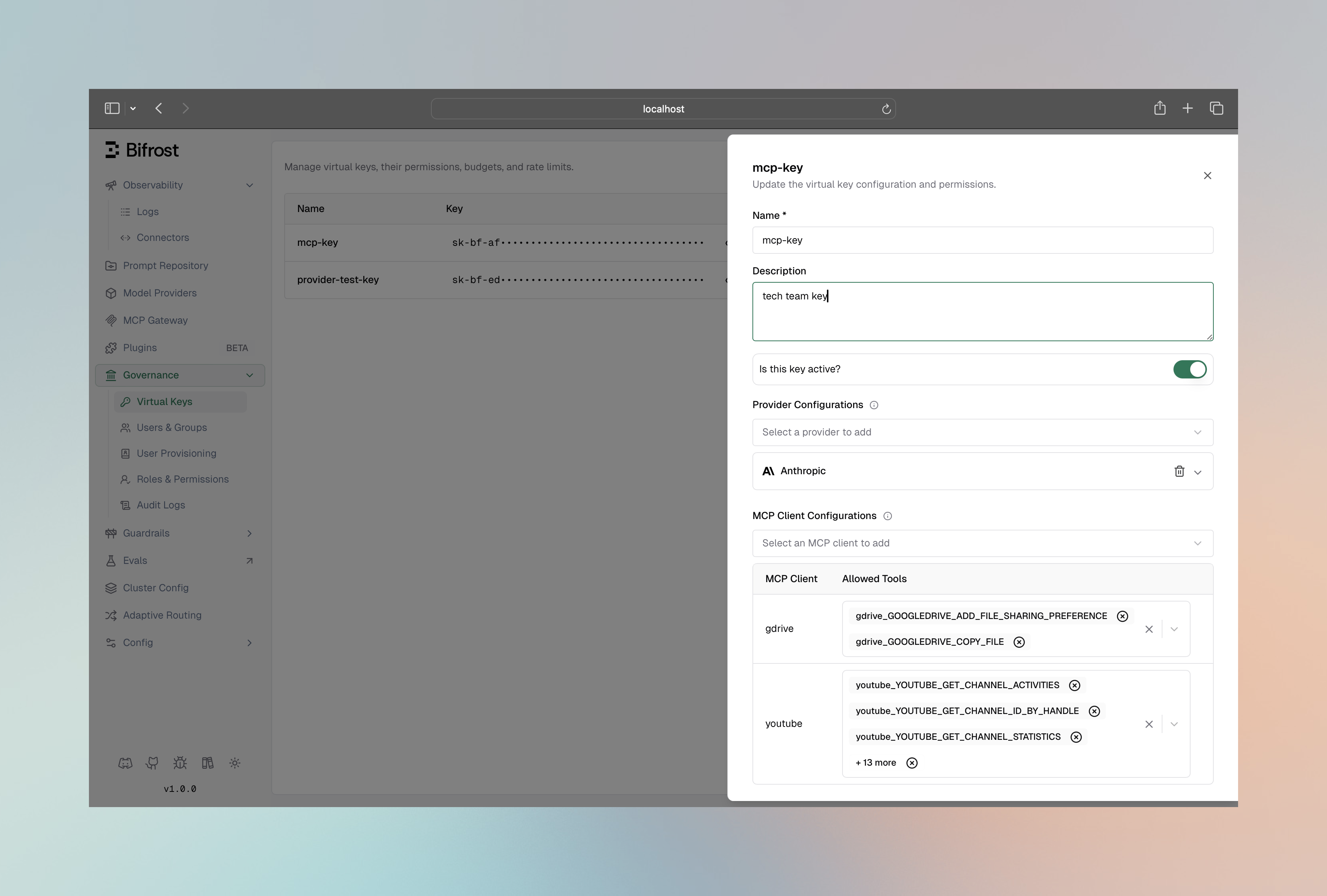
curl -X POST http://localhost:8080/api/governance/virtual-keys \ -H "Content-Type: application/json" \ -d '{ "name": "support-team-key", "mcp_configs": [ { "mcp_client_name": "knowledge_base", "tools_to_execute": ["search", "get_article"] }, { "mcp_client_name": "ticketing", "tools_to_execute": ["*"] } ] }'{ "governance": { "virtual_keys": [ { "name": "support-team-key", "mcp_configs": [ { "mcp_client_name": "knowledge_base", "tools_to_execute": ["search", "get_article"] }, { "mcp_client_name": "ticketing", "tools_to_execute": ["*"] } ] } ] }}| Configuration | Result |
|---|---|
tools_to_execute: ["*"] | All tools from this client |
tools_to_execute: [] | No tools from this client |
tools_to_execute: ["a", "b"] | Only specified tools |
| Client not configured | All tools blocked from that client |
Learn more in MCP Tool Filtering for Virtual Keys.
Setup:
filesystem has tools_to_execute: ["read_file", "write_file", "delete_file"]prod-key has mcp_configs: [{ mcp_client_name: "filesystem", tools_to_execute: ["read_file"] }]Request with prod-key:
curl -X POST http://localhost:8080/v1/chat/completions \ -H "Authorization: Bearer vk_prod_key" \ -H "x-bf-mcp-include-tools: filesystem-write_file" \ # This is IGNORED -d '...'Result: Only read_file is available (VK config overrides request header)
Request without VK (if allowed):
curl -X POST http://localhost:8080/v1/chat/completions \ -H "x-bf-mcp-include-tools: filesystem-write_file" \ -d '...'Result: Only write_file is available (request header applies)
Allow only read operations:
{ "tools_to_execute": ["read_file", "list_directory", "get_file_info"]}Use different VKs for different environments:
{ "virtual_keys": [ { "name": "development", "mcp_configs": [ { "mcp_client_name": "filesystem", "tools_to_execute": ["*"] }, { "mcp_client_name": "database", "tools_to_execute": ["*"] } ] }, { "name": "production", "mcp_configs": [ { "mcp_client_name": "filesystem", "tools_to_execute": ["read_file"] }, { "mcp_client_name": "database", "tools_to_execute": ["query"] } ] } ]}Create VKs for different user roles:
{ "virtual_keys": [ { "name": "viewer-role", "mcp_configs": [ { "mcp_client_name": "documents", "tools_to_execute": ["view", "search"] } ] }, { "name": "editor-role", "mcp_configs": [ { "mcp_client_name": "documents", "tools_to_execute": ["view", "search", "edit", "create"] } ] }, { "name": "admin-role", "mcp_configs": [ { "mcp_client_name": "documents", "tools_to_execute": ["*"] } ] } ]}For SDK users, filtering can be applied at the context level, enabling per-request tool customization:
import (    "context"    "github.com/maximhq/deepintshield/core/schemas")
// Filter to specific clientsctx := context.WithValue(    context.Background(),    schemas.DeepIntShieldContextKey("mcp-include-clients"),    []string{"filesystem", "web_search"},)
// Or filter to specific toolsctx = context.WithValue(    ctx,    schemas.DeepIntShieldContextKey("mcp-include-tools"),    []string{"filesystem-read_file", "web_search-search"},)
// Request will only see filtered toolsresponse, _ := client.ChatCompletionRequest(schemas.NewDeepIntShieldContext(ctx, schemas.NoDeadline), request)When multiple filters apply, they combine as an intersection (AND logic):
Client Config Tools ∩ Request Filters ∩ VK Filters = Available ToolsExample:
Gateway API:
curl http://localhost:8080/api/mcp/clientsResponse shows tools per client:
[ { "config": { "name": "filesystem", "tools_to_execute": ["read_file", "write_file"] }, "tools": [ { "name": "read_file", "description": "Read file contents" }, { "name": "write_file", "description": "Write to file" } ], "state": "connected" }]The tools included in a chat request depend on all active filters. To see what tools are available for a specific request, check the request body sent to the LLM provider in your logs or observability platform.