Playground
Overview
Section titled “Overview”The Playground in DeepIntShield is an interactive workspace for building, testing, and managing prompts. It allows you to experiment with messages, switch models, adjust parameters, and iterate until the output looks right. Once you’re satisfied, you can publish a version and use it directly in your codebase. Over time, the prompt repository becomes a centralized CMS for all your prompts, making it easier to manage versions, collaborate with teammates, and maintain production-ready prompts.
How it Works
Section titled “How it Works”The playground is built around four core concepts: Prompts, Sessions, and Versions.
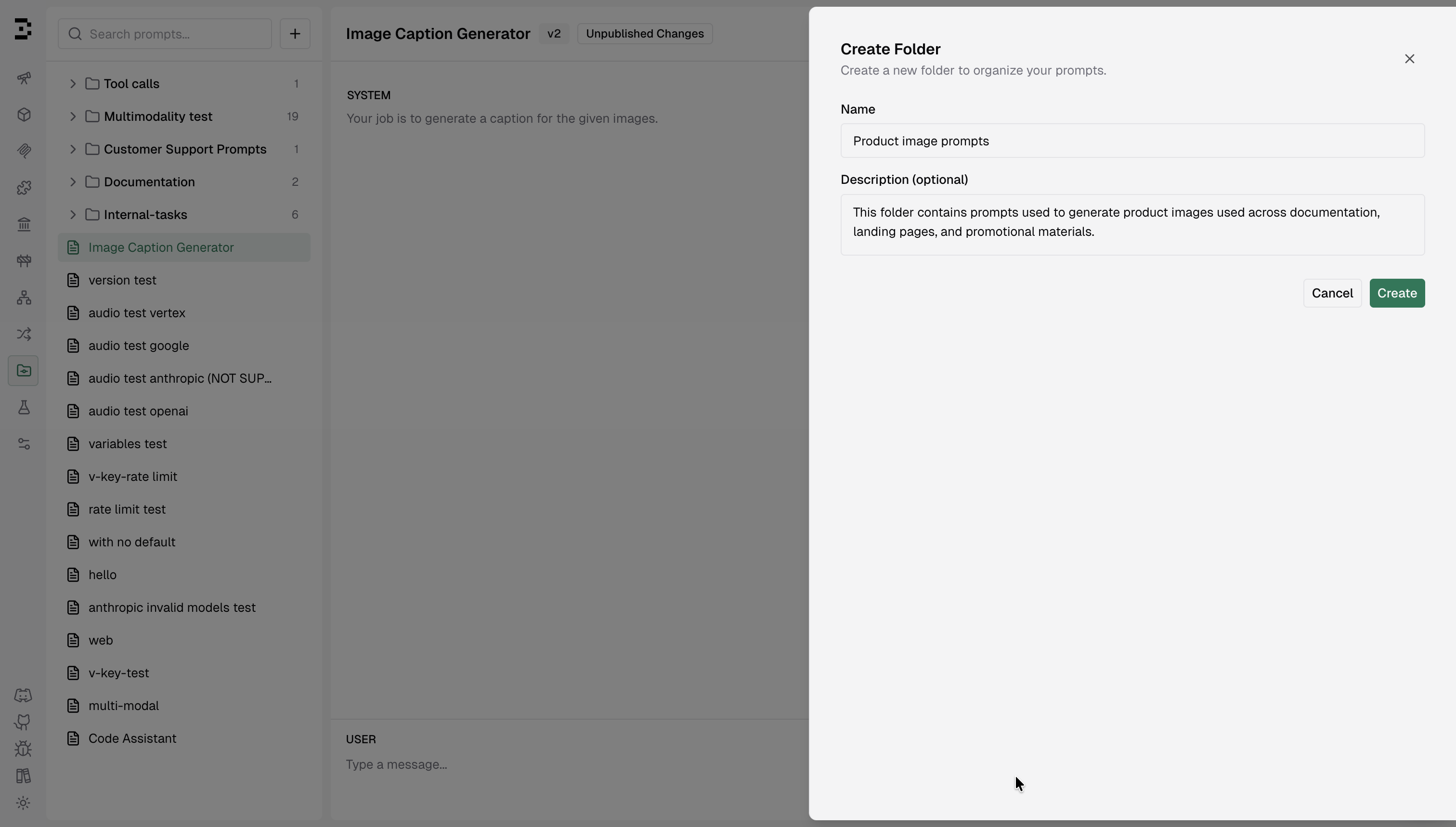
Folders
Section titled “Folders”Folders help organize prompts into logical groups. Teams often structure them by product area, feature, or use case.
- Each folder has a name and optional description
- Prompts can live inside folders or at the root level
- Deleting a folder removes all prompts, sessions, and versions inside it
Prompts
Section titled “Prompts”A Prompt is the main unit in the repository.
Think of it as a container that holds the full lifecycle of a prompt, from early experiments to production-ready versions.
Each prompt can have:
- Multiple sessions for experimentation
- Multiple versions for stable releases
Sessions (Working Copies)
Section titled “Sessions (Working Copies)”Sessions are editable working copies where you experiment with a prompt.
You can freely:
- Modify messages
- Switch providers or models
- Adjust parameters
- Run the prompt repeatedly
Sessions don’t affect committed versions, so you can iterate safely.
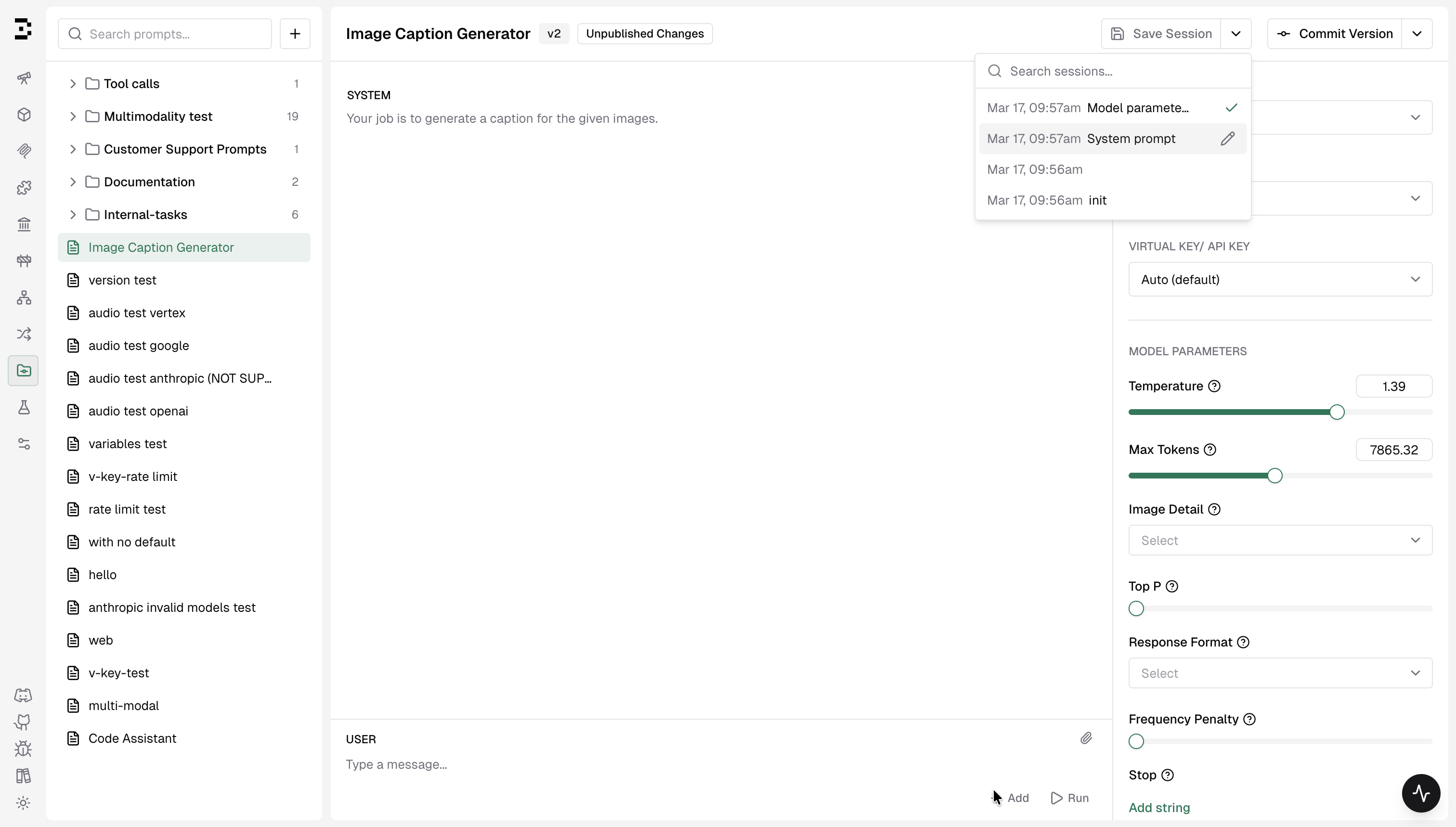
If your session has unsaved changes, a red asterisk appears next to the prompt name in the top bar.
You can save your progress using:
- Save Session button
Cmd + S/Ctrl + S
Saved sessions can be renamed and restored from the dropdown next to the Save button.
Versions (Immutable Snapshots)
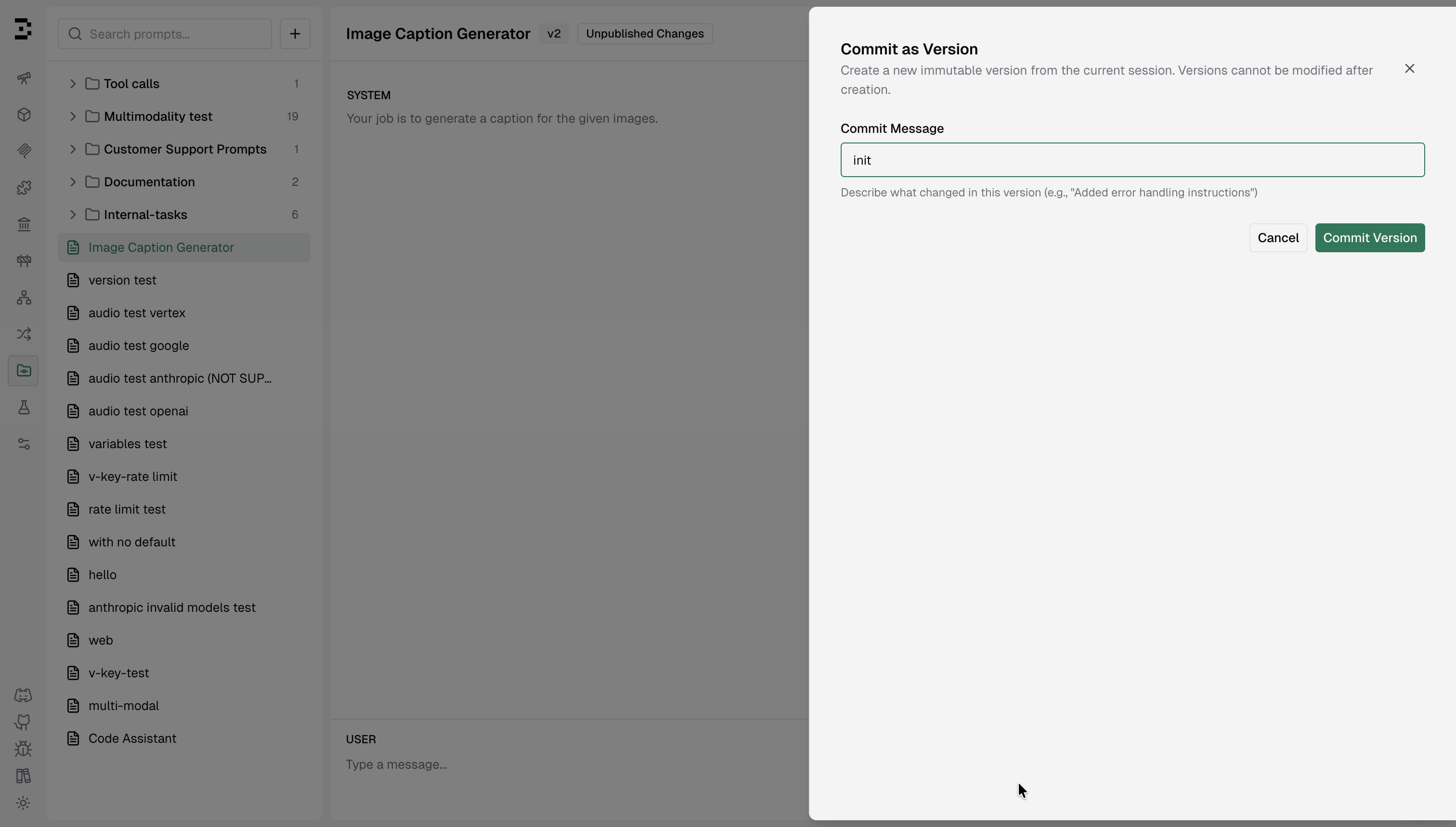
Section titled “Versions (Immutable Snapshots)”When you’re happy with a prompt, you can commit it as a version.
Versions are immutable snapshots; once created, they cannot be edited. When the config differs from the last saved version, the Unpublished Changes badge appears, and it can be committed to create a new version.
Each version stores:
- The selected message history (system, user, assistant)
- Provider and model configuration
- Model parameters (temperature, max tokens, etc.)
- A commit message describing the change
Versions are automatically numbered:
v1 → v2 → v3 → ...You can also restore a previous version from the dropdown next to the Commit Version button.
Workspace Layout
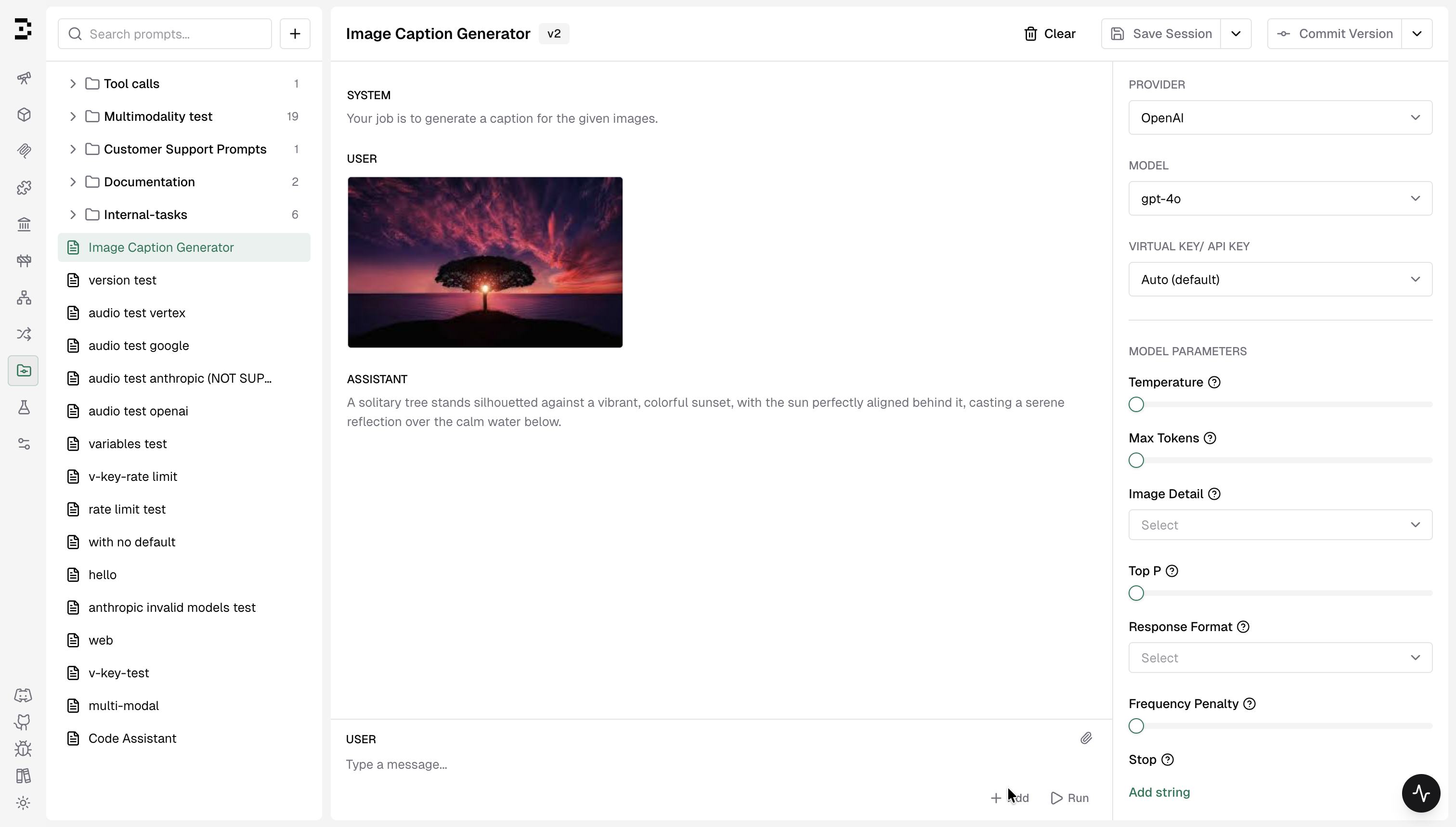
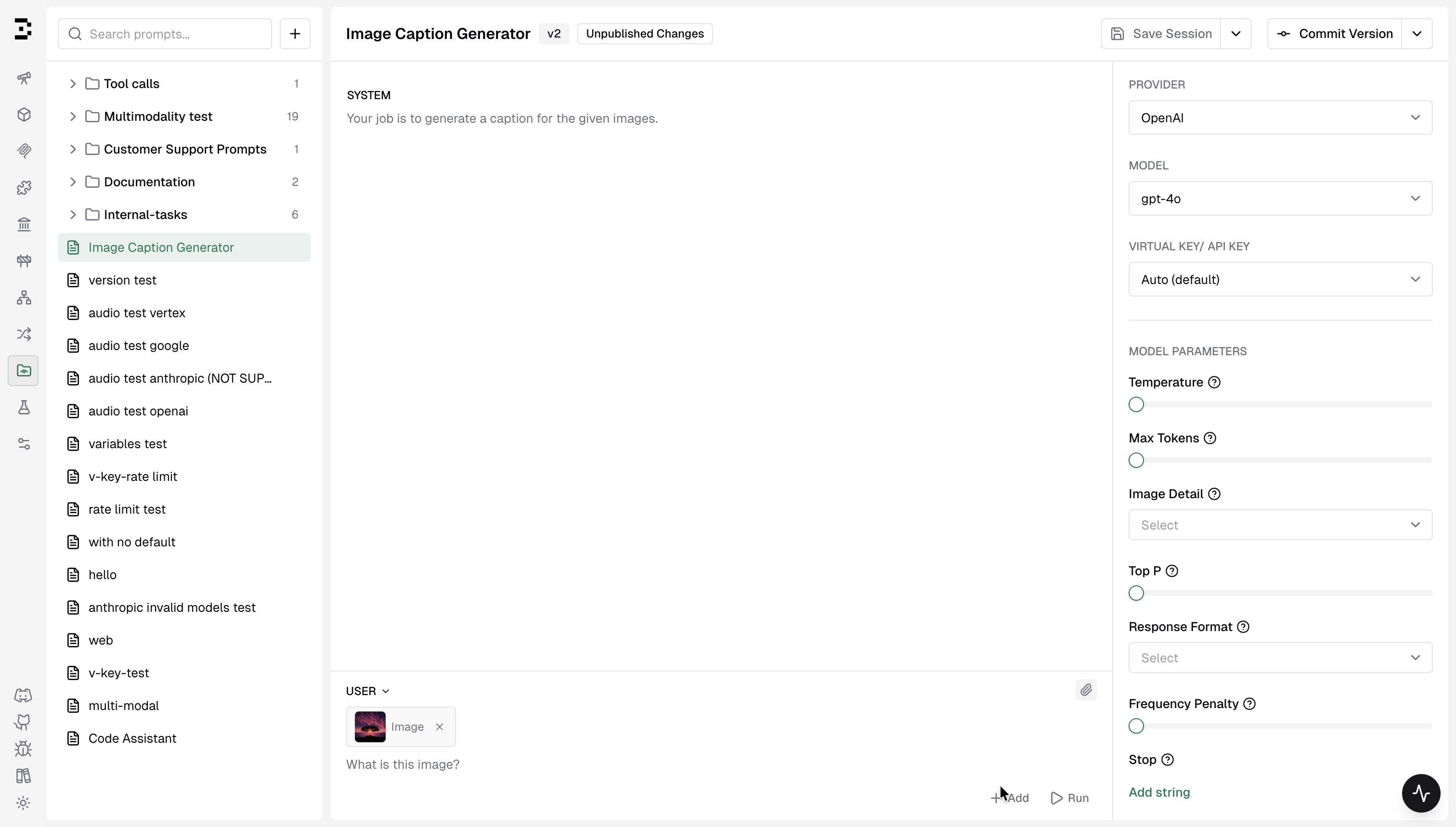
Section titled “Workspace Layout”The playground uses a simple three-panel layout:
| Panel | Purpose |
|---|---|
| Sidebar (left) | Browse prompts, manage folders, and organize items |
| Playground (center) | Build and test your prompt messages |
| Settings (right) | Configure provider, model, API key, variables, and parameters |
Getting Started
Section titled “Getting Started”Create a folder (optional)
Section titled “Create a folder (optional)”Click the ”+” button in the sidebar and select New Folder.
Folders help organize prompts by team, feature, or use case.
Create a prompt
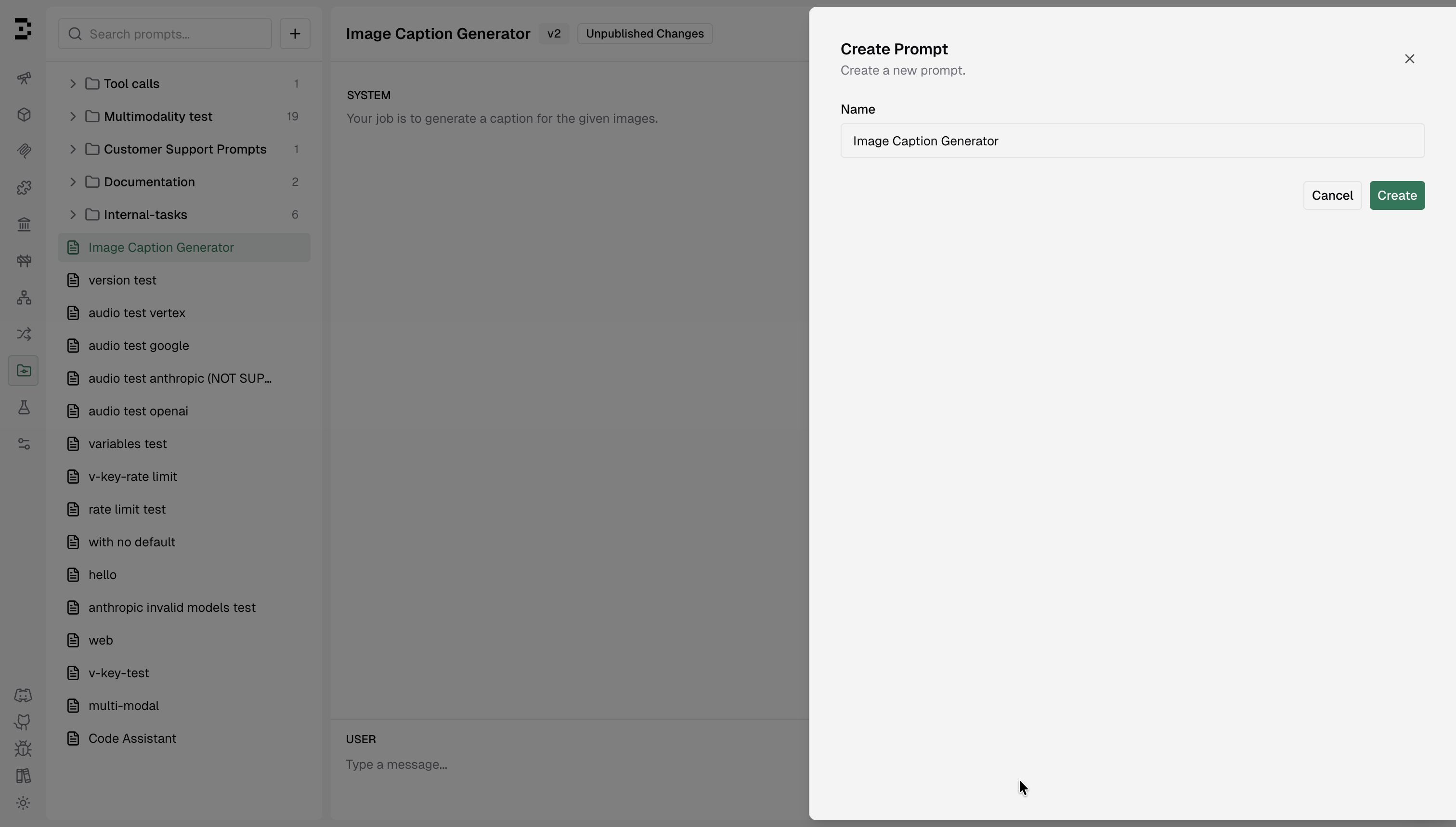
Section titled “Create a prompt”Click ”+” again and choose New Prompt.
Give it a name and optionally assign it to a folder.
Build your prompt
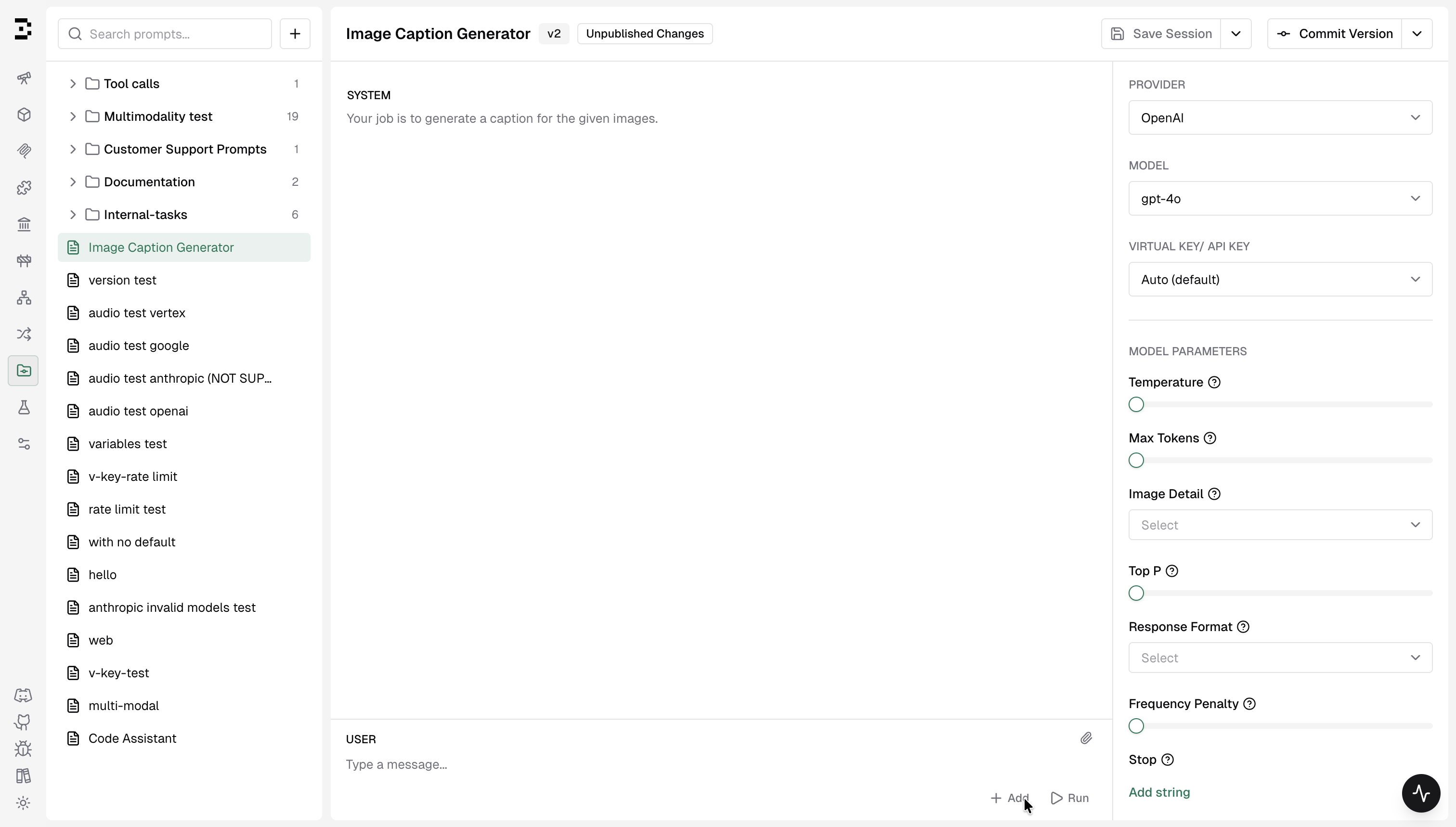
Section titled “Build your prompt”Add messages to your prompt in the Playground:
- System messages for instructions
- User messages for input
- Assistant messages for examples or few-shot responses
Configure the provider, model, and parameters from the settings panel on the right.
Run the prompt
Section titled “Run the prompt”Click Run or press Cmd + S / Ctrl + S.
Optionally, if you do not want to execute the prompt and only want to add a message to history, use the + Add button.
Save and publish a version
Section titled “Save and publish a version”Once you’re satisfied with the results:
- Save Session to preserve your work
- Commit Version to create an immutable snapshot
Key Capabilities
Section titled “Key Capabilities”Version Control
Section titled “Version Control”Each committed version creates a permanent record of your prompt.
This allows teams to track changes and safely iterate without breaking production prompts.
Key characteristics:
- Sequential versioning — v1, v2, v3, …
- Commit messages explaining what changed
- Immutable history
Multi-Provider Testing
Section titled “Multi-Provider Testing”You can switch between providers and models directly in the Playground.
Supported providers may include:
- OpenAI
- Anthropic
- AWS Bedrock
- Others configured in your DeepIntShield instance
You can also choose which API key to use:
- Auto: Uses the first available key.
- Specific key: Select a particular key.
- Virtual key: Uses governance-managed keys.
This makes it easy to compare how different models respond to the same prompt.
Message Types
Section titled “Message Types”The Playground supports several message roles:
- System: Defines behavior or instructions.
- User: Input to the model.
- Assistant: The model’s response to the user’s input.
- Tool Calls: Function calls made by the model.
- Tool Results: Mock or real responses from called tools.
These allow you to simulate complex conversations and agent workflows.
Attachments
Section titled “Attachments”For models that support multimodal input, you can attach files directly to user messages.
Supported attachments may include:
- Images
- PDFs
- Other supported file types
Attachments are only enabled when the selected model supports them.
Drag-and-Drop Organization
Section titled “Drag-and-Drop Organization”Prompts can be reorganized easily using drag and drop in the sidebar.
You can move prompts:
- Between folders
- Back to the root level
Session Management
Section titled “Session Management”Sessions store the state of your prompt experiments.
Each prompt maintains its own session history, allowing you to explore different approaches without losing previous work.
With sessions you can:
- Save specific conversation states
- Rename sessions for clarity
- Switch between past experiments