
Built-in Observability
Overview
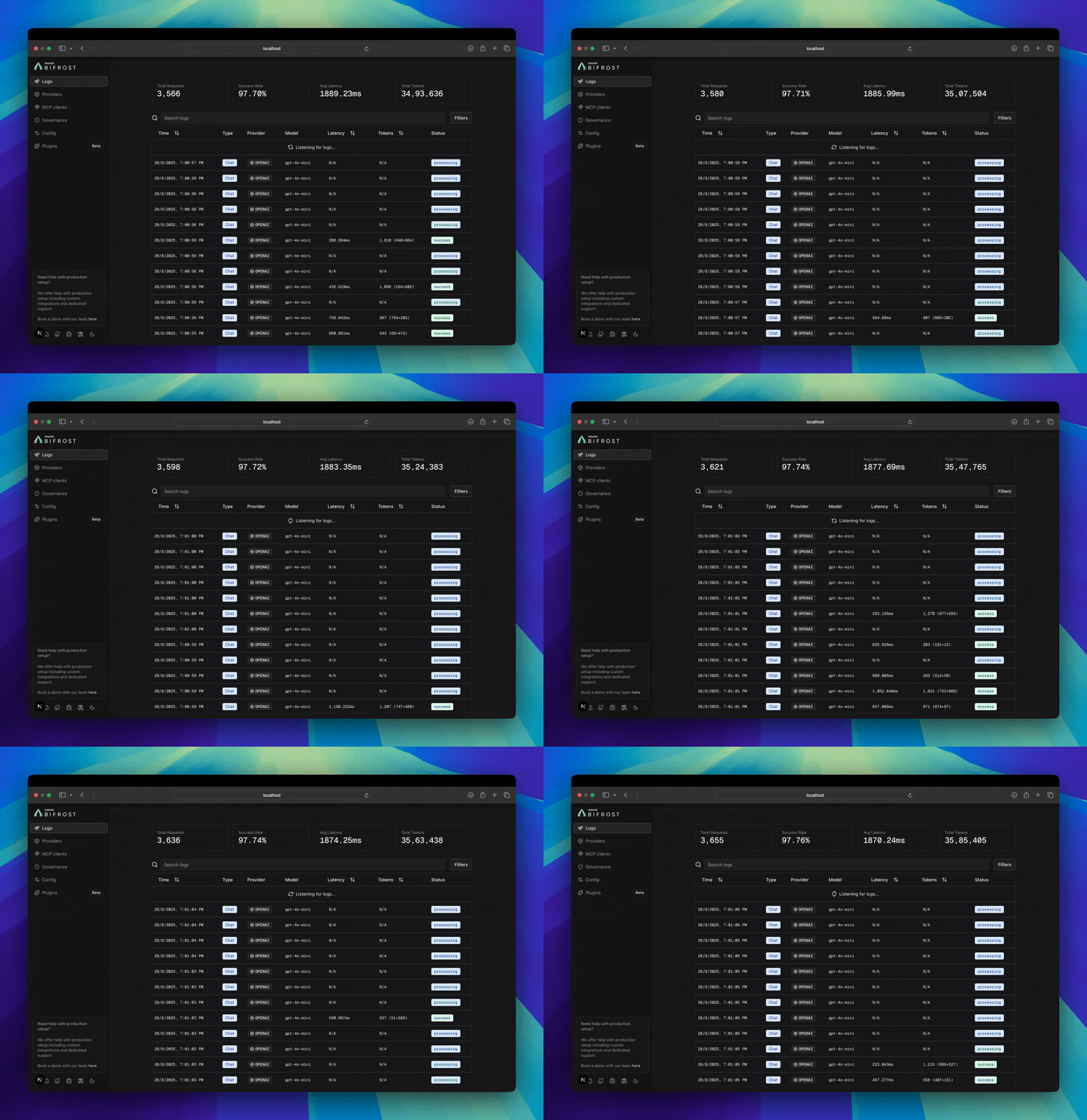
Section titled “Overview”DeepIntShield includes built-in observability, a powerful feature that automatically captures and stores detailed information about every AI request and response that flows through your system. This provides structured, searchable data with real-time monitoring capabilities, making it easy to debug issues, analyze performance patterns, and understand your AI application’s behavior at scale.
All LLM interactions are captured with comprehensive metadata including inputs, outputs, tokens, costs, and latency. The logging plugin operates asynchronously with zero impact on request latency.
What’s Captured
Section titled “What’s Captured”DeepIntShield traces comprehensive information for every request, without any changes to your application code.
Request Data
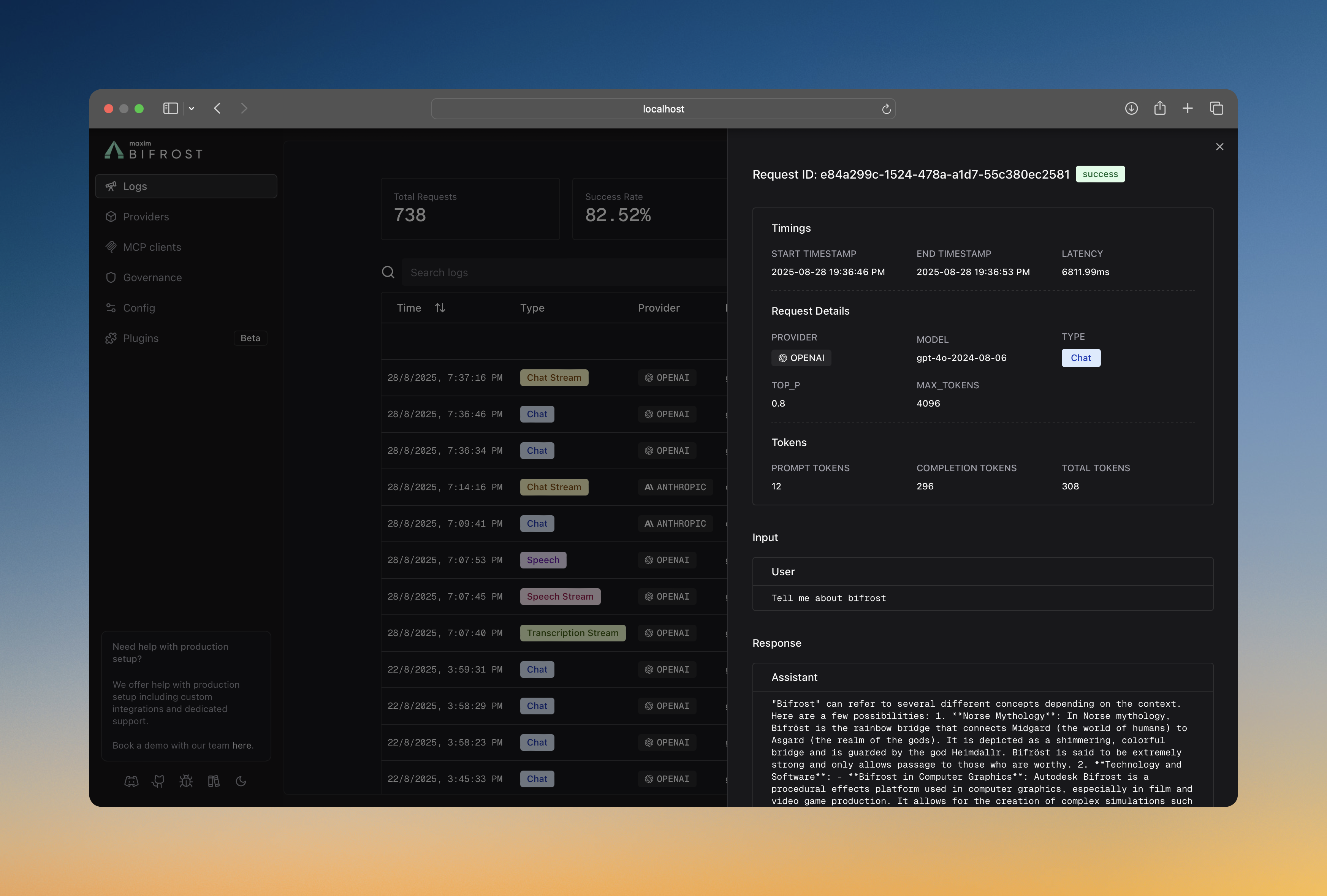
Section titled “Request Data”- Input Messages: Complete conversation history and user prompts
- Model Parameters: Temperature, max tokens, tools, and all other parameters
- Provider Context: Which provider and model handled the request
Response Data
Section titled “Response Data”- Output Messages: AI responses, tool calls, and function results
- Performance Metrics: Latency and token usage
- Status Information: Success or error details
Custom Metadata
Section titled “Custom Metadata”- Logging Headers: Capture configured request headers (e.g.,
X-Tenant-ID) into log metadata - Ad-hoc Headers: Any
x-bf-lh-*prefixed header is automatically captured into metadata - See Logging Headers below for full details
Multimodal & Tool Support
Section titled “Multimodal & Tool Support”- Audio Processing: Speech synthesis and transcription inputs/outputs
- Vision Analysis: Image URLs and vision model responses
- Tool Execution: Function calling arguments and results
How It Works
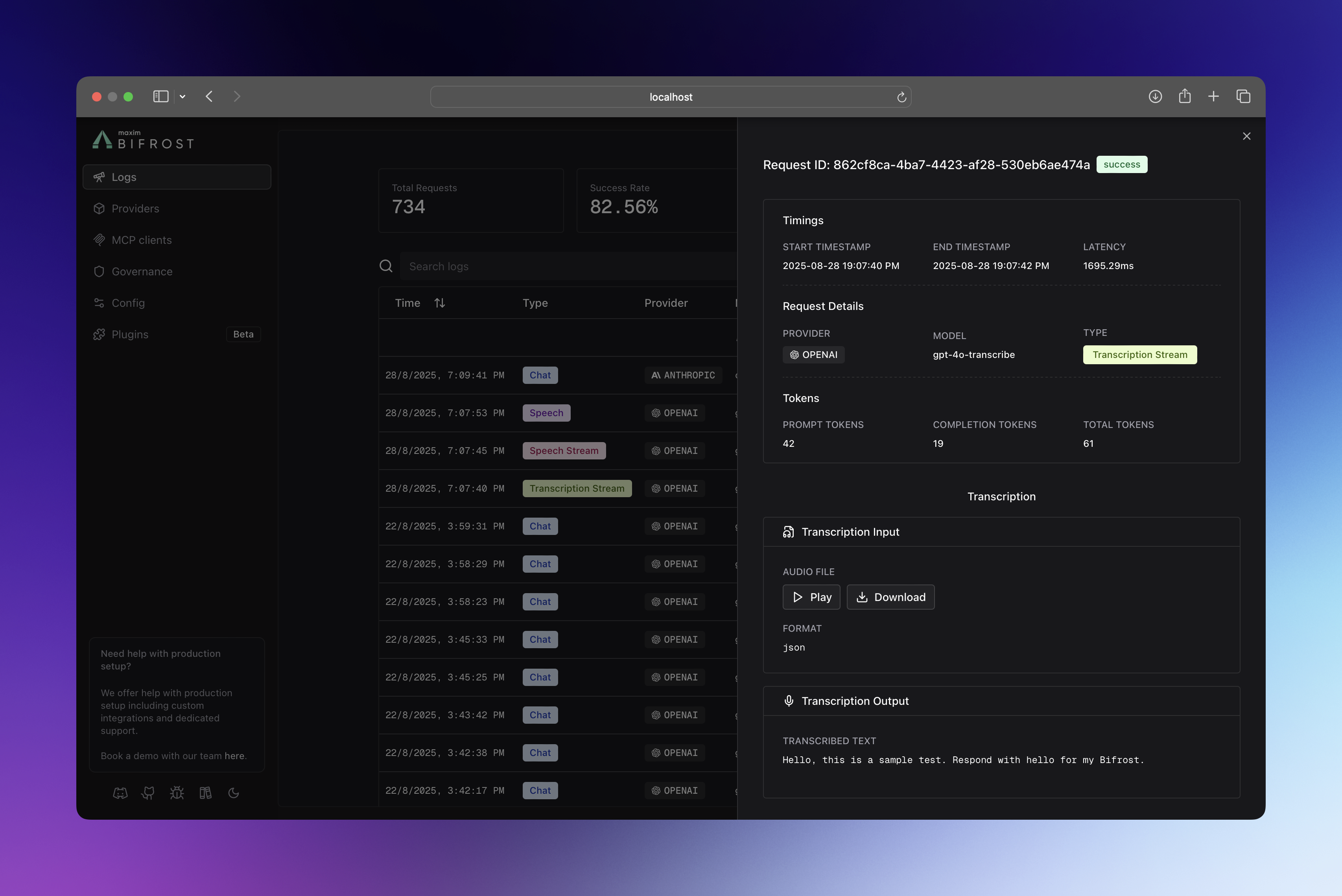
Section titled “How It Works”The logging plugin intercepts all requests flowing through DeepIntShield using the plugin architecture, ensuring your LLM requests maintain optimal performance:
- PreLLMHook: Captures request metadata (provider, model, input messages, parameters).
- Async Processing: Logs are written in background goroutines with
sync.Pooloptimization. - PostLLMHook: Updates log entry with response data (output, tokens, cost, latency, errors).
- Real-time Updates: WebSocket broadcasts keep the UI synchronized.
All logging operations are non-blocking, ensuring your LLM requests maintain optimal performance.
Configuration
Section titled “Configuration”Configure request tracing to control what gets logged and where it’s stored.
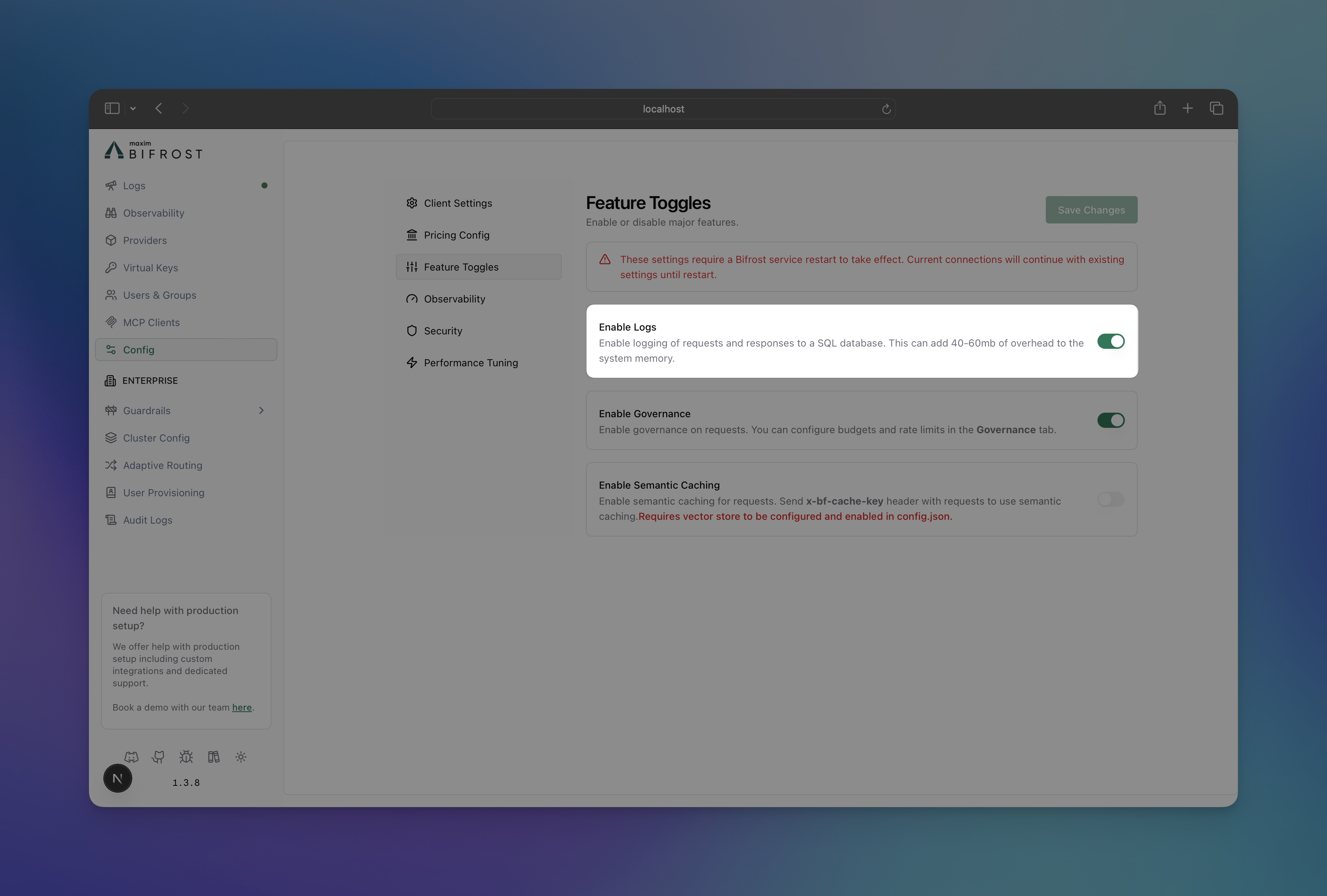
- Navigate to http://localhost:8080
- Go to “Settings”
- Toggle “Enable Logs”
Enable/Disable Tracing:
curl --location 'http://localhost:8080/api/config' \--header 'Content-Type: application/json' \--method PUT \--data '{ "client_config": { "enable_logging": true, "disable_content_logging": false, "drop_excess_requests": false, "initial_pool_size": 300, "enforce_governance_header": false, "allow_direct_keys": false, "prometheus_labels": [], "allowed_origins": [] }}'Check Current Configuration:
curl --location 'http://localhost:8080/api/config'Response includes tracing status:
{ "client_config": { "enable_logging": true, "disable_content_logging": false, "drop_excess_requests": false }, "is_db_connected": true, "is_cache_connected": true, "is_logs_connected": true}In your config.json file, you can enable logging and configure the log store:
{ "client": { "enable_logging": true, "disable_content_logging": false, "drop_excess_requests": false, "initial_pool_size": 300, "allow_direct_keys": false }, "logs_store": { "enabled": true, "type": "sqlite", "config": { "path": "./logs.db" } }}enable_logging: Master toggle for request tracing.disable_content_logging: Disable logging of request/response content, but still log usage metadata (latency, cost, token count, etc.).logs_store: Check Log Store Options for more details.
When using DeepIntShield as a Go SDK, initialize the logging plugin manually:
package main
import (    "context"    deepintshield "github.com/maximhq/deepintshield/core"    "github.com/maximhq/deepintshield/core/schemas"    "github.com/maximhq/deepintshield/framework/logstore"    "github.com/maximhq/deepintshield/framework/pricing"    "github.com/maximhq/deepintshield/plugins/logging")
func main() {    ctx := context.Background()    logger := schemas.NewLogger()
    // Initialize log store (SQLite)    store, err := logstore.NewLogStore(ctx, &logstore.Config{        Enabled: true,        Type:    logstore.LogStoreTypeSQLite,        Config: &logstore.SQLiteConfig{            Path: "./logs.db",        },    }, logger)    if err != nil {        panic(err)    }
    // Initialize pricing manager (required for cost calculation)    pricingManager := pricing.NewPricingManager(logger)
    // Initialize logging plugin    loggingPlugin, err := logging.Init(ctx, logger, store, pricingManager)    if err != nil {        panic(err)    }
    // Initialize DeepIntShield with logging plugin    client, err := deepintshield.Init(ctx, schemas.DeepIntShieldConfig{        Account: &yourAccount,        LLMPlugins: []schemas.LLMPlugin{loggingPlugin},    })    if err != nil {        panic(err)    }    defer client.Shutdown()
    // All requests are now logged automatically}
Accessing & Filtering Logs
Section titled “Accessing & Filtering Logs”Retrieve and analyze logs with powerful filtering capabilities via the UI, API, and WebSockets.
Web UI
Section titled “Web UI”When running the Gateway, access the built-in dashboard at http://localhost:8080. The UI provides:
- Real-time log streaming
- Advanced filtering and search
- Detailed request/response inspection
- Token and cost analytics
API Endpoints
Section titled “API Endpoints”Query logs programmatically using the GET request.
curl 'http://localhost:8080/api/logs?' \'providers=openai,anthropic&' \'models=gpt-4o-mini&' \'status=success,error&' \'start_time=2024-01-15T00:00:00Z&' \'end_time=2024-01-15T23:59:59Z&' \'min_latency=1000&' \'max_latency=5000&' \'min_tokens=10&' \'max_tokens=1000&' \'min_cost=0.001&' \'max_cost=10&' \'content_search=python&' \'limit=100&' \'offset=0'Available Filters:
| Filter | Description | Example |
|---|---|---|
providers | Filter by AI providers | openai,anthropic |
models | Filter by specific models | gpt-4o-mini,claude-3-sonnet |
status | Request status | success,error,processing |
objects | Request types | chat.completion,embedding |
start_time / end_time | Time range (RFC3339) | 2024-01-15T10:00:00Z |
min_latency / max_latency | Response time (ms) | 1000 to 5000 |
min_tokens / max_tokens | Token usage range | 10 to 1000 |
min_cost / max_cost | Cost range (USD) | 0.001 to 10 |
content_search | Search in messages | "error handling" |
limit / offset | Pagination | 100, 200 |
Response Format
{ "logs": [...], "pagination": { "limit": 100, "offset": 0, "sort_by": "timestamp", "order": "desc" }, "stats": { "total_requests": 1234, "success_rate": 0.85, "average_latency": 100, "total_tokens": 10000, "total_cost": 100 }}Perfect for analytics, debugging specific issues, or building custom monitoring dashboards.
WebSocket
Section titled “WebSocket”Subscribe to real-time log updates for live monitoring:
const ws = new WebSocket('ws://localhost:8080/ws')
ws.onmessage = (event) => {  const logUpdate = JSON.parse(event.data)  console.log('New log entry:', logUpdate)}
Log Store Options
Section titled “Log Store Options”Choose the right storage backend for your scale and requirements.
The logging plugin is automatically enabled in Gateway mode with SQLite storage by default. You can configure it to use PostgreSQL by setting the logs_store configuration in your config.json file.
Current Support
Section titled “Current Support”- Best for: Development, small-medium deployments
- Performance: Excellent for read-heavy workloads
- Setup: Zero configuration, single file storage
- Limits: Single-writer, local filesystem only
{ "logs_store": { "enabled": true, "type": "sqlite", "config": { "path": "./logs.db" } }}- Best for: High-volume production deployments
- Performance: Excellent concurrent writes and complex queries
- Features: Advanced indexing, partitioning, replication
- Requirement: PostgreSQL database must be UTF8 encoded (see PostgreSQL UTF8 Requirement)
{ "logs_store": { "enabled": true, "type": "postgres", "config": { "host": "localhost", "port": "5432", "user": "deepintshield", "password": "postgres", "db_name": "deepintshield", "ssl_mode": "disable" } }}Planned Support
Section titled “Planned Support”- MySQL: For traditional MySQL environments.
- ClickHouse: For large-scale analytics and time-series workloads.
Supported Request Types
Section titled “Supported Request Types”The logging plugin captures all DeepIntShield request types:
- Text Completion (streaming and non-streaming)
- Chat Completion (streaming and non-streaming)
- Responses (streaming and non-streaming)
- Embeddings
- Speech Generation (streaming and non-streaming)
- Transcription (streaming and non-streaming)
- Video Generation
Logging Headers
Section titled “Logging Headers”Capture specific HTTP request headers into the metadata field of every LLM and MCP log entry. This enables request tracing, tenant identification, and custom debugging without modifying your application code.
How It Works
Section titled “How It Works”There are two ways headers get captured into log metadata:
1. Configured Logging Headers — Define a list of header names in the configuration. The logging plugin looks up each configured header (case-insensitive) and stores its value in the metadata.
2. x-bf-lh-* Prefix (Automatic) — Any request header with the x-bf-lh- prefix is automatically captured into metadata with no configuration needed. The prefix is stripped and the remainder becomes the metadata key.
| Request Header | Metadata Key | Metadata Value |
|---|---|---|
x-bf-lh-tenant-id: acme | tenant-id | acme |
x-bf-lh-env: production | env | production |
x-bf-lh-region: us-east-1 | region | us-east-1 |
Both methods can be used together — configured headers and x-bf-lh-* headers are merged into the same metadata map.
Configuring Logging Headers
Section titled “Configuring Logging Headers”- Navigate to Config > Logging
- Ensure Enable Logs is toggled on
- Scroll to Logging Headers
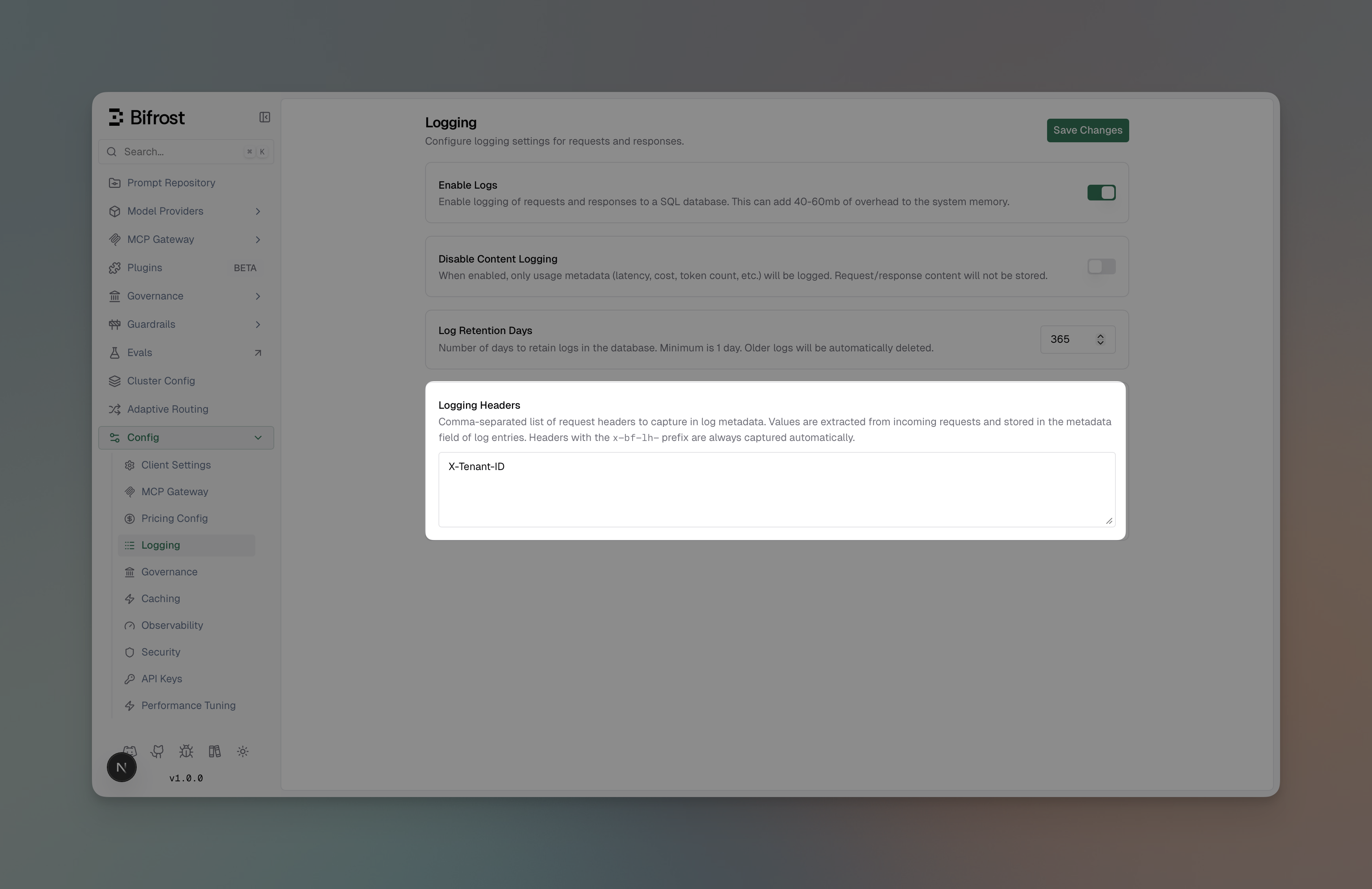
- Enter a comma-separated list of header names (e.g.,
X-Tenant-ID, X-Correlation-ID) - Click Save Changes
Changes take effect immediately — no restart required.
Include logging_headers in the client_config when updating the configuration:
curl -X PUT http://localhost:8080/api/config \ -H "Content-Type: application/json" \ -d '{ "client_config": { "logging_headers": ["X-Tenant-ID", "X-Correlation-ID"] } }'Add logging_headers to the client section:
{ "client": { "enable_logging": true, "logging_headers": ["X-Tenant-ID", "X-Correlation-ID"] }}| Field | Type | Required | Description |
|---|---|---|---|
logging_headers | string[] | No | List of header names to capture in log metadata. Case-insensitive. No restart required. |
Usage Examples
Section titled “Usage Examples”Configured headers:
# Config has: logging_headers: ["X-Tenant-ID", "X-Correlation-ID"]curl http://localhost:8080/v1/chat/completions \ -H "Content-Type: application/json" \ -H "X-Tenant-ID: tenant-123" \ -H "X-Correlation-ID: req-abc-456" \ -d '{"model": "gpt-4o", "messages": [{"role": "user", "content": "Hello"}]}'Log metadata: {"x-tenant-id": "tenant-123", "x-correlation-id": "req-abc-456"}
Ad-hoc x-bf-lh-* headers (no config needed):
curl http://localhost:8080/v1/chat/completions \ -H "Content-Type: application/json" \ -H "x-bf-lh-env: production" \ -H "x-bf-lh-version: v2.1.0" \ -d '{"model": "gpt-4o", "messages": [{"role": "user", "content": "Hello"}]}'Log metadata: {"env": "production", "version": "v2.1.0"}
Viewing Metadata in the UI
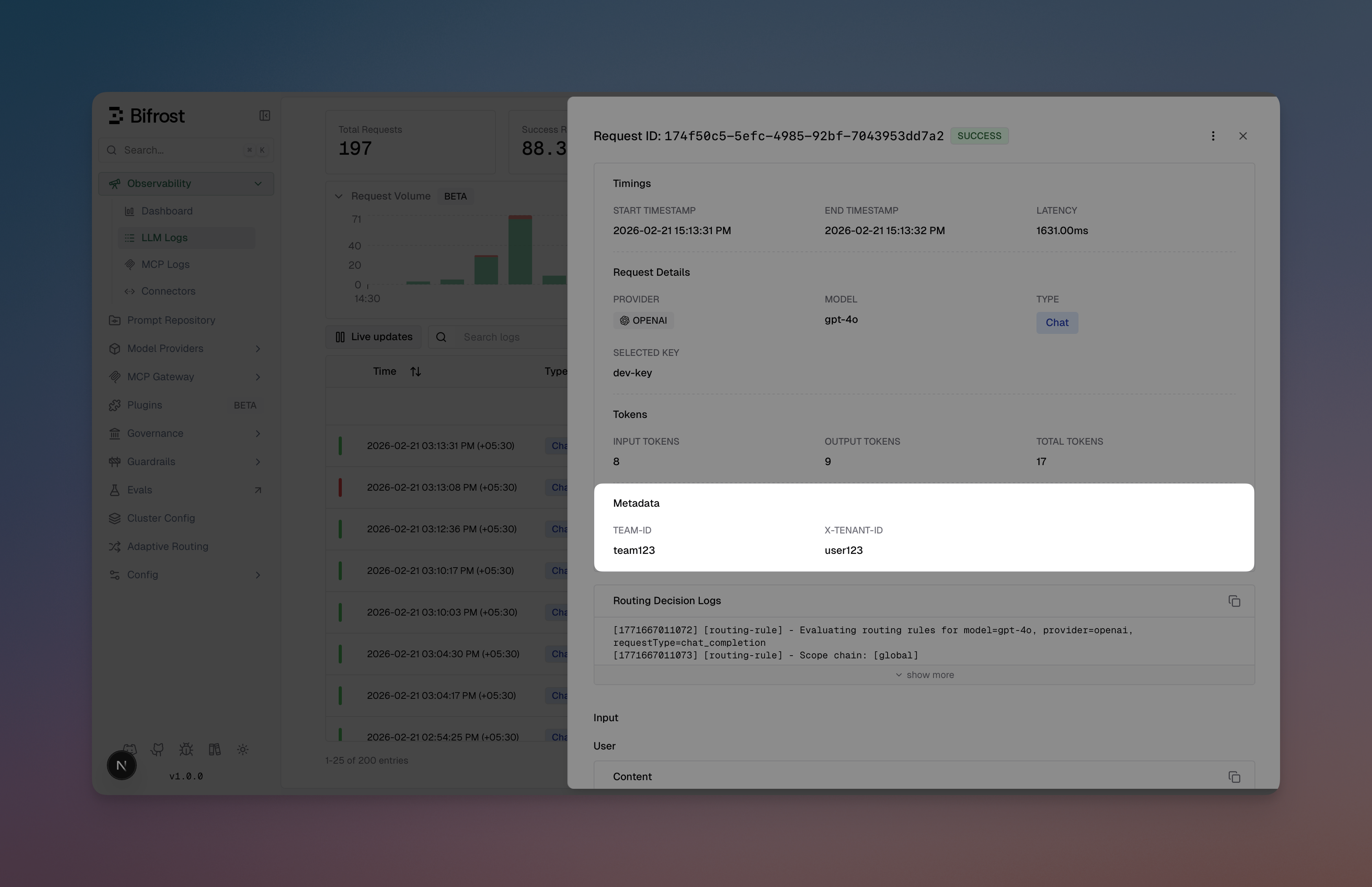
Section titled “Viewing Metadata in the UI”Metadata is displayed in the log detail view for both LLM and MCP logs as individual key-value entries alongside other request details.
Combining with Required Headers
Section titled “Combining with Required Headers”Required headers and logging headers serve different purposes and can be used together:
| Feature | Purpose | Effect on Request |
|---|---|---|
| Required Headers | Enforce header presence | Rejects request if missing (400) |
| Logging Headers | Capture header values | No effect on request — only logs metadata |
A common pattern is to require a header and log it:
{ "client": { "required_headers": ["X-Tenant-ID"], "logging_headers": ["X-Tenant-ID"] }}When to Use
Section titled “When to Use”Built-in Observability
Section titled “Built-in Observability”Use the built-in logging plugin for:
- Local Development: Quick setup with SQLite, no external dependencies
- Self-hosted Deployments: Full control over your data with PostgreSQL
- Simple Use Cases: Basic monitoring and debugging needs
- Privacy-sensitive Workloads: Keep all logs on your infrastructure
vs. Maxim Plugin
Section titled “vs. Maxim Plugin”Switch to the Maxim plugin for:
- Advanced evaluation and testing workflows
- Prompt engineering and experimentation
- Multi-team governance and collaboration
- Production monitoring with alerts and SLAs
- Dataset management and annotation pipelines
vs. OTel Plugin
Section titled “vs. OTel Plugin”Switch to the OTel plugin for:
- Integration with existing observability infrastructure
- Correlation with application traces and metrics
- Custom collector configurations
- Compliance and enterprise requirements
Performance
Section titled “Performance”The logging plugin is designed for zero-impact observability:
- Async Operations: All database writes happen in background goroutines
- Sync.Pool: Reuses memory allocations for LogMessage and UpdateLogData structs
- Batch Processing: Efficiently handles high request volumes
- Automatic Cleanup: Removes stale processing logs every 30 seconds
In benchmarks, the logging plugin adds < 0.1ms overhead to request processing time.
Next Steps
Section titled “Next Steps”- Maxim Plugin - Advanced observability with evaluation and monitoring
- OTel Plugin - OpenTelemetry integration for distributed tracing
- Gateway Setup - Get DeepIntShield running with tracing enabled
- Provider Configuration - Configure multiple providers for better insights
- Telemetry - Prometheus metrics and dashboards
- Governance - Virtual keys and usage limits