
MCP Tool Filtering
Overview
Section titled “Overview”MCP Tool Filtering allows you to control which tools are available to AI models on a per-request basis using Virtual Keys (VKs). By configuring a VirtualKey, you can create a strict allow-list of MCP clients and tools, ensuring that only approved tools can be executed.
Make sure you have at least one MCP client set up. Read more about it here.
How It Works
Section titled “How It Works”The filtering logic is determined by the Virtual Key’s configuration:
-
No MCP Configuration on Virtual Key (Default)
- If a Virtual Key has no specific MCP configurations, all tools from all enabled MCP clients are available by default.
- In this state, a user can still manually filter tools for a single request by passing the
x-bf-mcp-include-toolsheader.
-
With MCP Configuration on Virtual Key
- When you configure MCP clients on a Virtual Key, its settings take full precedence.
- DeepIntShield automatically generates an
x-bf-mcp-include-toolsheader based on your VK configuration. This acts as a strict allow-list for the request. - This generated header overrides any
x-bf-mcp-include-toolsheader that might have been sent manually with the request.
For each MCP client associated with a Virtual Key, you can specify the allowed tools:
- Select specific tools: Only the chosen tools from that client will be available.
- Use
*wildcard: All available tools from that client will be permitted. - Leave tool list empty: All tools from that client will be blocked.
- Do not configure a client: All tools from that client will be blocked (if other clients are configured).
Setting MCP Tool Restrictions
Section titled “Setting MCP Tool Restrictions”You can configure which tools a Virtual Key has access to via the UI.
- Go to Virtual Keys page.
- Create/Edit virtual key
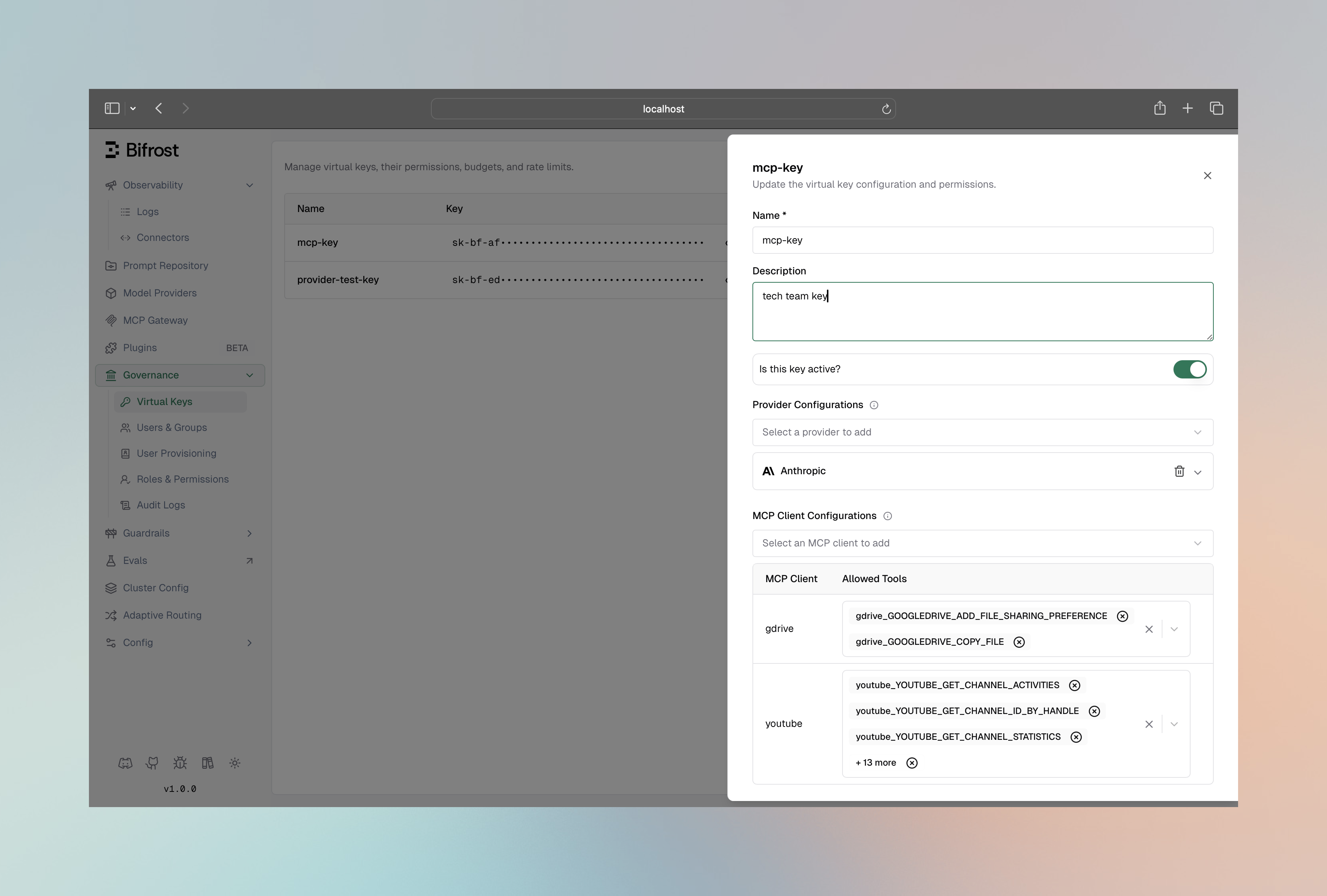
- In MCP Client Configurations section, add the MCP client you want to restrict the VK to
- Add the tools you want to restrict the VK to, or leave it blank to allow all tools for this client
- Click on the Save button
You can configure this via the REST API when creating (POST) or updating (PUT) a virtual key.
Create Virtual Key:
curl -X POST http://localhost:8080/api/governance/virtual-keys \ -H "Content-Type: application/json" \ -d '{ "name": "vk-for-billing-support", "mcp_configs": [ { "mcp_client_name": "billing-client", "tools_to_execute": ["check-status"] }, { "mcp_client_name": "support-client", "tools_to_execute": ["*"] } ] }'Update Virtual Key:
curl -X PUT http://localhost:8080/api/governance/virtual-keys/{vk_id} \ -H "Content-Type: application/json" \ -d '{ "mcp_configs": [ { "mcp_client_name": "billing-client", "tools_to_execute": ["check-status"] }, { "mcp_client_name": "support-client", "tools_to_execute": ["*"] } ] }'Behavior:
- The virtual key can only access the
check-statustool frombilling-client. - It can access all tools from
support-client. - Any other MCP client is implicitly blocked for this key.
You can also define MCP tool restrictions directly in your config.json file. The mcp_configs array under a virtual key should reference the MCP client by name.
{ "governance": { "virtual_keys": [ { "id": "vk-billing-support-only", "name": "VK for Billing and Support", "mcp_configs": [ { "mcp_client_name": "billing-client", "tools_to_execute": ["check-status"] }, { "mcp_client_name": "support-client", "tools_to_execute": ["*"] } ] } ] }}Example Scenario
Section titled “Example Scenario”Available MCP Clients & Tools:
billing-client: with tools[create-invoice, check-status]support-client: with tools[create-ticket, get-faq]
Configuration:
billing-client-> Allowed Tools:[*](wildcard)support-client-> Allowed Tools:[*](wildcard)
Result:
A request with this Virtual Key can access all four tools: create-invoice, check-status, create-ticket, and get-faq.
Configuration:
billing-client-> Allowed Tools:[check-status]support-client-> Not configured
Result:
A request with this Virtual Key can only access the check-status tool. All other tools are blocked.
Configuration:
billing-client-> Allowed Tools:[](empty list)
Result: A request with this Virtual Key cannot access any tools. All tools from all clients are blocked.