Roo Code
Roo Code is an AI-powered VS Code extension that supports OpenAI-compatible APIs. By connecting it to DeepIntShield, you get access to any provider/model in your DeepIntShield configuration, plus governance features like virtual keys and built-in observability.
1. Install Roo Code
Section titled “1. Install Roo Code”Install the Roo Code extension from the VS Code marketplace.
2. Create an API Configuration Profile
Section titled “2. Create an API Configuration Profile”- Open Settings (click the gear icon) → Providers
- Click the + button to create a new profile
- Select OpenAI Compatible as the provider
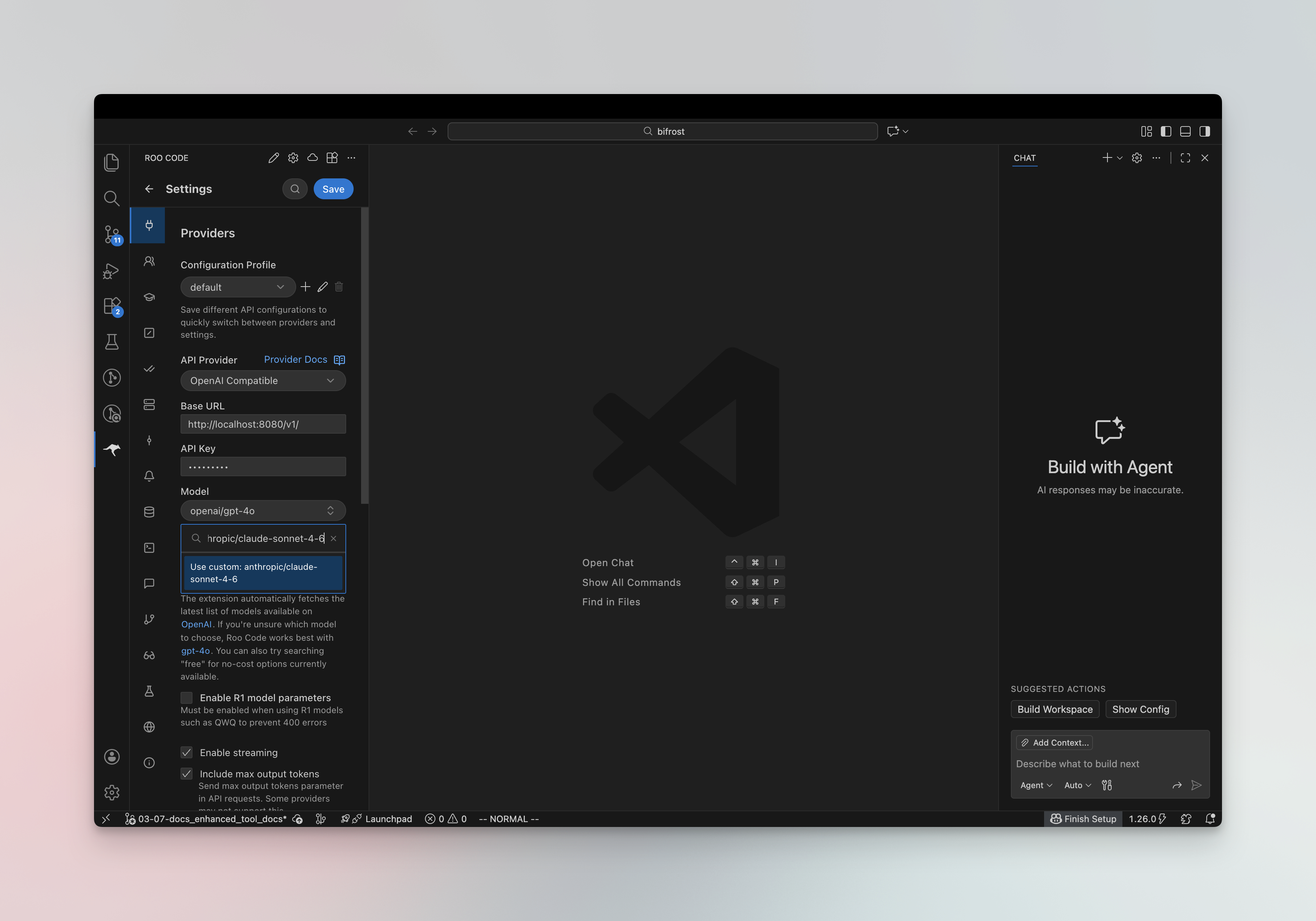
- Configure the following:
| Field | Value |
|---|---|
| Base URL | http://localhost:8080/openai (or your DeepIntShield host, e.g. https://deepintshield.yourcompany.com/openai) |
| API Key | Your DeepIntShield virtual key if authentication is enabled; otherwise use dummy or leave empty |
| Model | DeepIntShield model ID in provider/model format (e.g. anthropic/claude-sonnet-4-5-20250929, openai/gpt-5) |
3. Verify the Connection
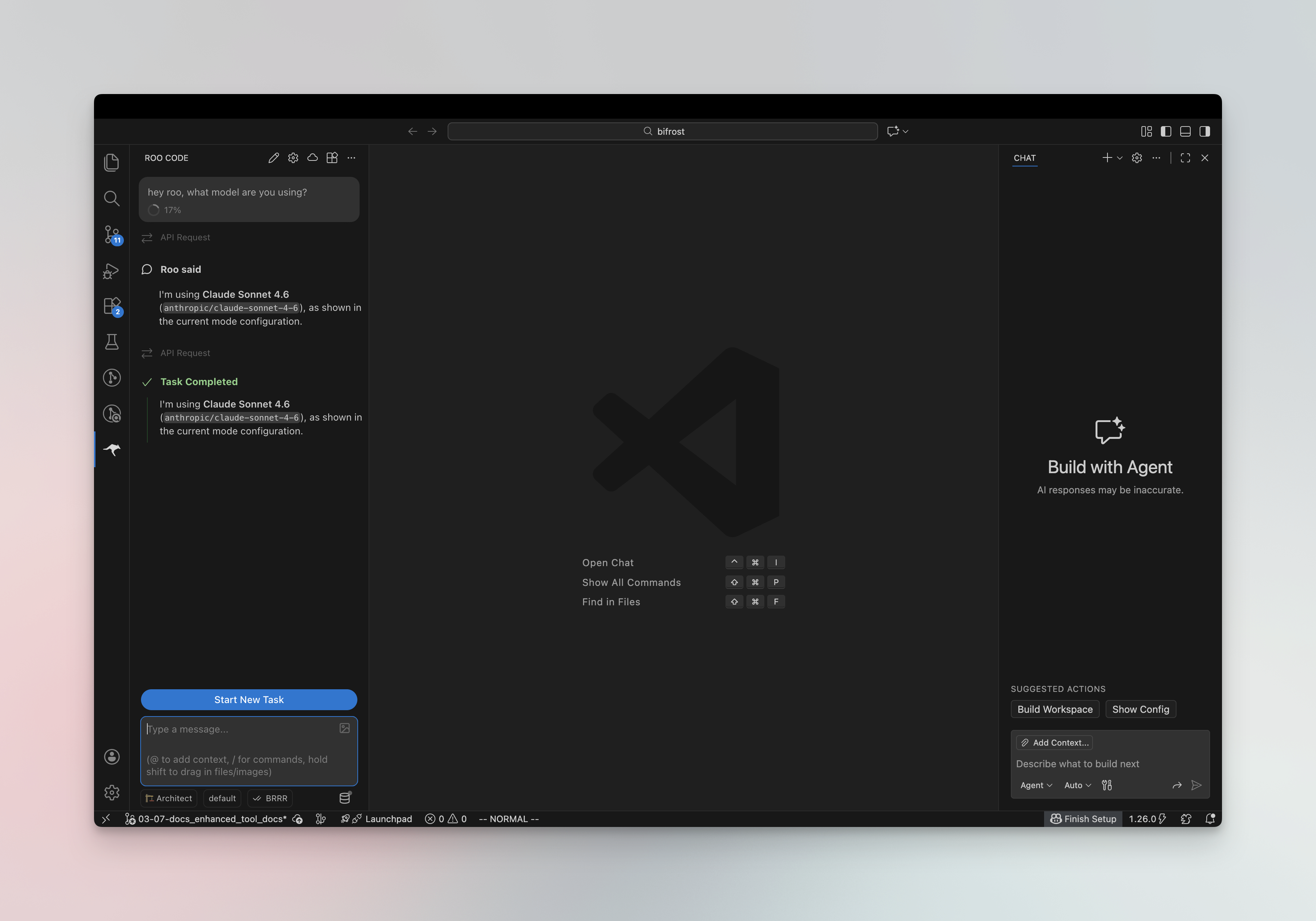
Section titled “3. Verify the Connection”Ask Roo which model it’s using — it should respond with the DeepIntShield model ID you configured (e.g. anthropic/claude-sonnet-4-5).
Virtual Keys
Section titled “Virtual Keys”When DeepIntShield has virtual key authentication enabled, set API Key in your Roo Code profile to your virtual key. This lets you enforce usage limits, budgets, and access control per user or team.
For team deployments, create a separate configuration profile for each team — each can use a different virtual key with its own rate limits, budgets, and provider access rules configured in the DeepIntShield dashboard.
Model Selection
Section titled “Model Selection”Roo Code lets you assign models per mode (Code, Ask, Architect, Debug, Orchestrator). Use DeepIntShield model IDs in provider/model format to access any configured provider:
- Use powerful models like
openai/gpt-5oranthropic/claude-sonnet-4-5-20250929for complex coding tasks - Use fast models like
groq/llama-3.3-70b-versatilefor quick completions - Link different profiles to different modes in the Prompts tab for optimal cost and performance
Using Multiple Providers
Section titled “Using Multiple Providers”DeepIntShield routes requests to the correct provider based on the model name. Use the provider/model-name format to access any configured provider through the single OpenAI-compatible endpoint:
anthropic/claude-sonnet-4-5-20250929openai/gpt-5gemini/gemini-2.5-promistral/mistral-large-latestSupported Providers
Section titled “Supported Providers”DeepIntShield supports the following providers with the provider/model-name format:
openai, azure, gemini, vertex, bedrock, mistral, groq, cerebras, cohere, perplexity, xai, ollama, openrouter, huggingface, nebius, parasail, replicate, vllm, sgl
MCP Server Integration
Section titled “MCP Server Integration”Roo Code supports MCP (Model Context Protocol). You can connect it to DeepIntShield’s MCP server to access all tools configured in DeepIntShield. See MCP Gateway URL for setup instructions.
Observability
Section titled “Observability”All Roo Code traffic through DeepIntShield is logged. Monitor it at http://localhost:8080/logs — filter by provider, model, or search through conversation content to track usage.
Next Steps
Section titled “Next Steps”- Provider Configuration — Configure AI providers in DeepIntShield
- Virtual Keys — Set up usage limits and access control