LibreChat
Open-source chat client supporting multiple providers
DeepIntShield provides 100% compatible endpoints for OpenAI, Anthropic, and Gemini APIs, making it seamless to integrate with any agent that uses these providers. Point each agent at the DeepIntShield URL shape it expects (see Configuration below and the guide for your tool). That unlocks:
LibreChat
Open-source chat client supporting multiple providers
Open WebUI
ChatGPT-like open-source chat interface
Claude Code
AI-powered coding directly in your terminal
Codex CLI
OpenAI’s powerful code generation CLI
Gemini CLI
Google’s coding assistant with advanced reasoning
Qwen Code
Alibaba’s coding assistant
Opencode
Terminal-based coding assistant by SST
Cursor
AI-powered IDE with MCP integration and virtual key support
Zed Editor
High-performance editor with AI integration
Roo Code
AI-powered VS Code extension with multi-provider support
Agent integrations work with your existing DeepIntShield configuration. Ensure you have:
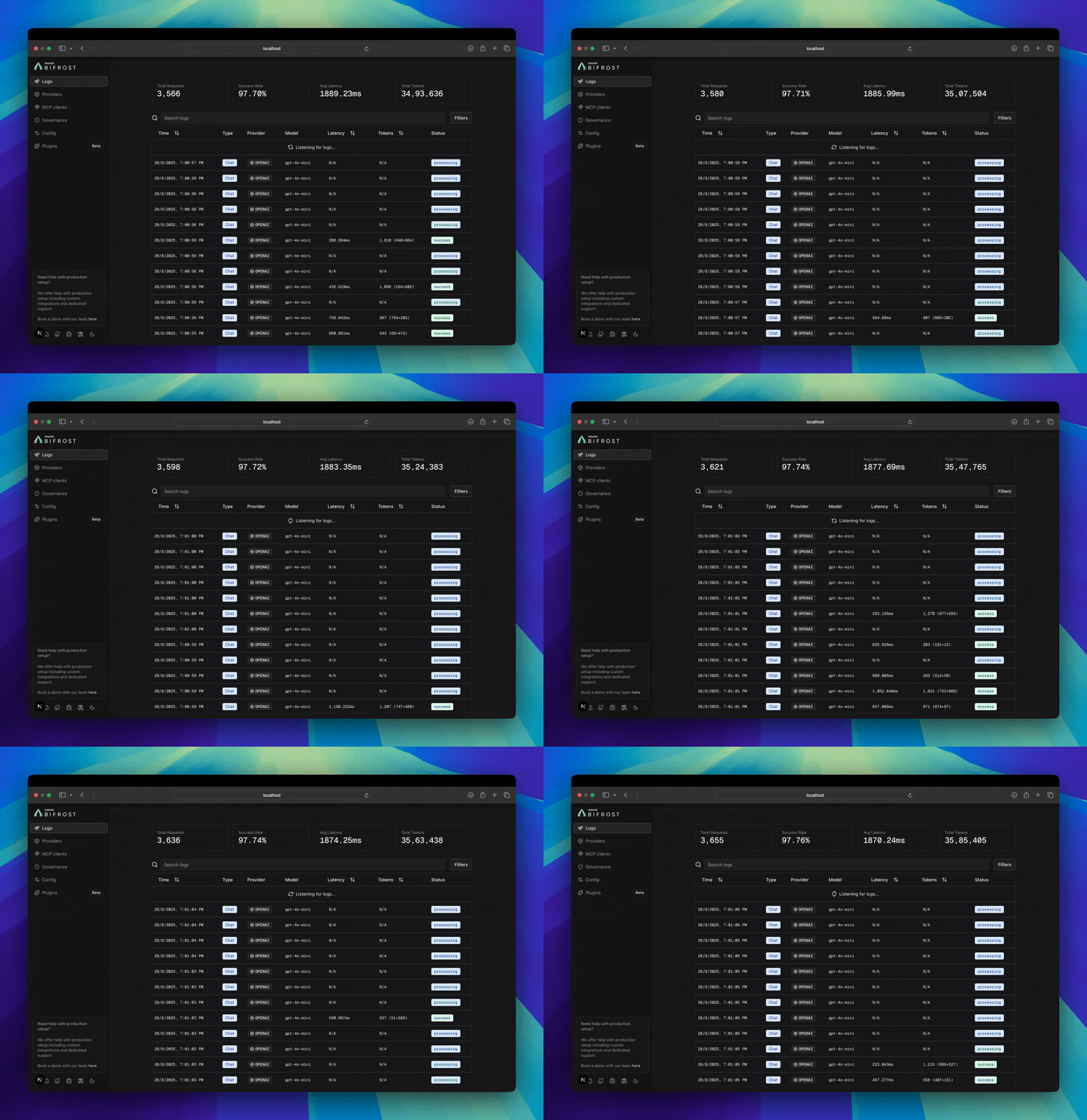
All agent interactions are automatically logged and can be monitored at http://localhost:8080/logs. You can filter by provider, model, or search through conversation content to track your agents’ performance.
 For complete monitoring capabilities, see Built-in Observability.
DeepIntShield exposes all configured MCP tools through a dedicated MCP server endpoint at /mcp. This allows external MCP clients (Claude Code, Cursor, and other MCP-compatible applications) to connect directly and access your tools.
Add DeepIntShield as an MCP server to Claude Code:
claude mcp add --transport http deepintshield http://localhost:8080/mcpUsing Virtual Key Authentication:
If you have virtual key authentication enabled in DeepIntShield, connect using the JSON configuration format:
claude mcp add-json deepintshield '{"type":"http","url":"http://localhost:8080/mcp","headers":{"Authorization":"Bearer bf-virtual-key"}}'Replace bf-virtual-key with your actual DeepIntShield virtual key.
Claude Code will only have access to the specific MCP tools permitted by the virtual key’s configuration. To grant access to additional tools, verify or modify the virtual key’s MCP tool permissions in the DeepIntShield dashboard.
You can connect any MCP-compatible client to DeepIntShield’s MCP server:
claude mcp add commandControl which tools each client can access using Virtual Keys:
For complete setup instructions and tool filtering options, see MCP Gateway URL.